
SINP – OASIS
User Guide for Applicants
Government of Saskatchewan — Ministry of Immigration and Career Training
Immigration Services Branch — Saskatchewan Immigrant Nominee Program
7th Floor, 1945 Hamilton Street, Regina, Saskatchewan S4P 2C8
Telephone: (Canada 001) 833-613-0485 · Facsimile: (Canada 001) 306-798-0713
Inquiries: [email protected]
Website: www.saskatchewan.ca/sinp
1.0 Introduction and Log On
This guide explains how to access and use the various screens associated with SINP Online Applications on the OASIS system.
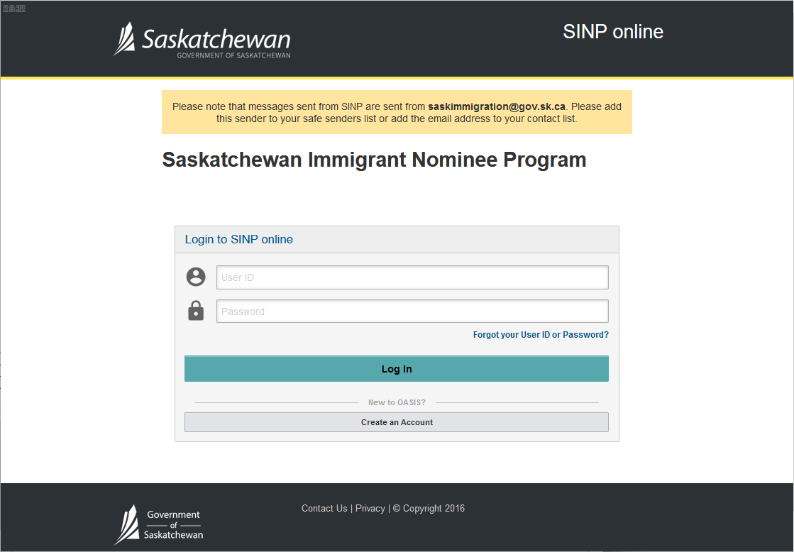
Click on the following link to access SINP Online: https://immigration.saskatchewan.ca/apex/f?p=305:101:816149727231
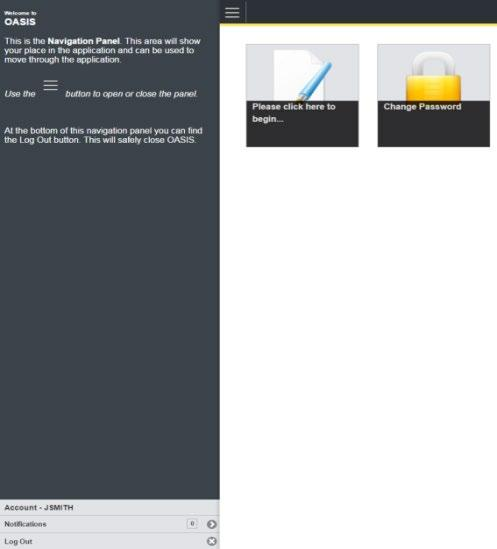
The Welcome screen above will be displayed. You need to create an account first to access the system.
We encourage you to review all the requirements for documentation and forms that you need to attach to your application and review the criteria below before you begin your application.
Click on the link below for the International Skilled Worker Category: International Skilled Worker Category
Click on the link below for the Saskatchewan Experience Category: Saskatchewan Experience Category
1.1 Register on OASIS
- Click on Create an Account.
- Click Select a Registration Type.

- Choose SINP Applicant or Expression of Interest Candidate and click Continue.
- Create a username. Username must not contain spaces or any special characters other than an underscore ('_'). Your username will be used to access your OASIS account.
- Enter your First, Middle, and Family (Last) Name as they appear on your passport.
- Enter your Date of Birth in DD-Mon-YYYY format.
- Enter your Email address.


Click Submit.
An email including your username and password will be sent to you. You will need this information to login to OASIS.
1.2 Login to OASIS
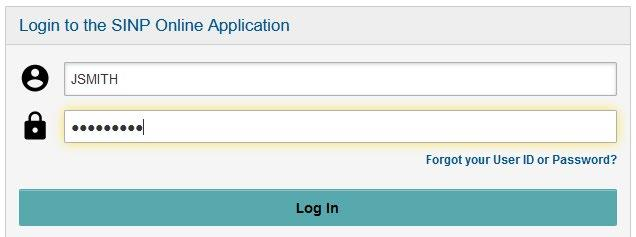
- On the login page, type in your username and password sent in the email and click Login.
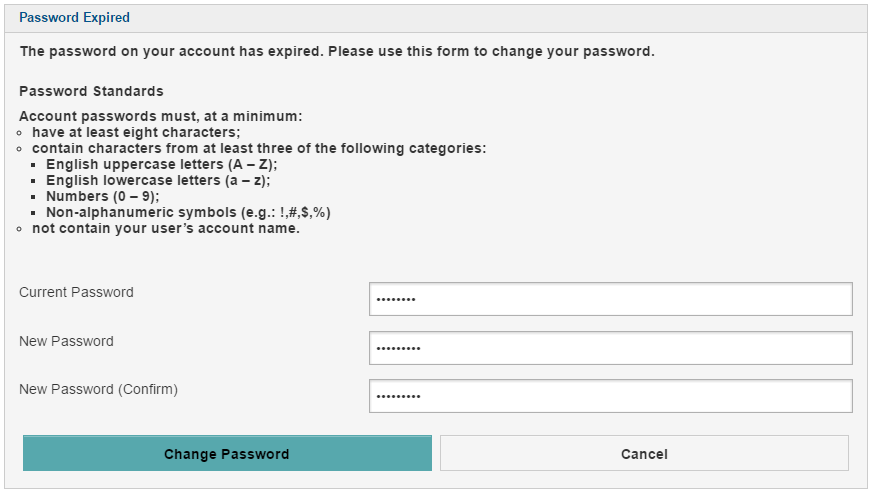
- The system will then prompt you to change your password.

1.3 Authority to Disclose Personal Information
In order to continue logging into OASIS for the first time, all users must agree to disclose information by clicking the "I AGREE" button.

1.4 User ID or Password Recovery
In order to recover access to your account, on the login page, click "Forgot your User ID or Password?", then choose Recovery Method.
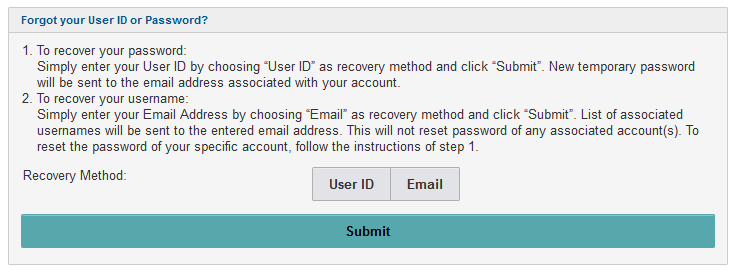
Choose "User ID" to reset your password. You will be asked to enter the username used when you created your account. An email containing the username and temporary password will be sent to the email address associated with your User ID (or username).
If you want to recover your account using the email address used, click "Email" as recovery method. A list of usernames associated with your email address will be sent to you by email. To reset the password, you will need to perform the previous step using recovery method "User ID".
2.0 Start your application

- When scanning documents that have been translated, please scan the original document and the English or French translation, and the SINP Translator Affidavit as one document. Please find the affidavit form at: https://publications.saskatchewan.ca/#/products/76058
- To reduce the size of the documents scanned, SINP does not require blank pages from your passport.
- Ensure all scanned copies are clear and easy to read.
- Please review the category-specific checklist to ensure your application is complete with all required documents.
Important Note: If you have questions, trouble with your username or password, or to reset your password; please email [email protected] or call 1-833-613-0485.
To secure your personal information, please log out of the SINP Online Application and ensure you completely close your web browser when you are finished with your session.
2.1 Applicant Information / Passport Details
Fill in all Applicant Information and Passport Details required below:
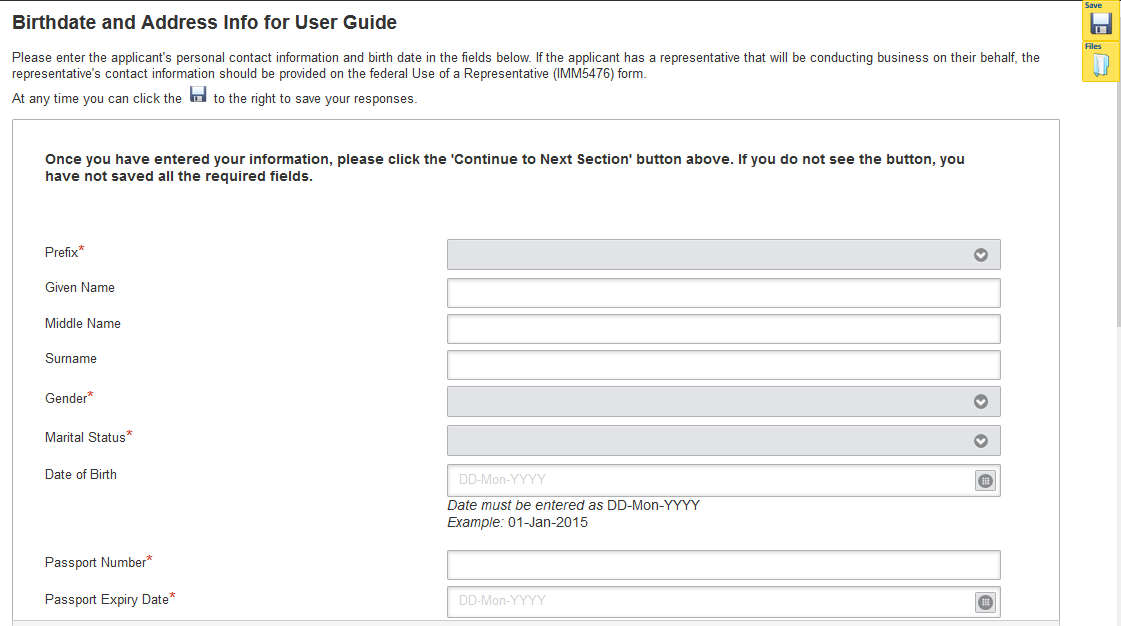
Select Intended destination for settlement, then enter the country and current city/town of your current residence.

2.2 Residential/Home Address
Fill in Residential/Home Address:

- If your Home Address is outside Canada, under Province/State, choose International/Outside Canada and type in your province.

- If your Home Address is the same as your mailing address, choose 'Yes' for the question 'Is the mailing address the same as the Residential/Home Address?'.

2.3 Mailing Address and Contact Information
Fill in mailing address and telephone number if different from your home address:
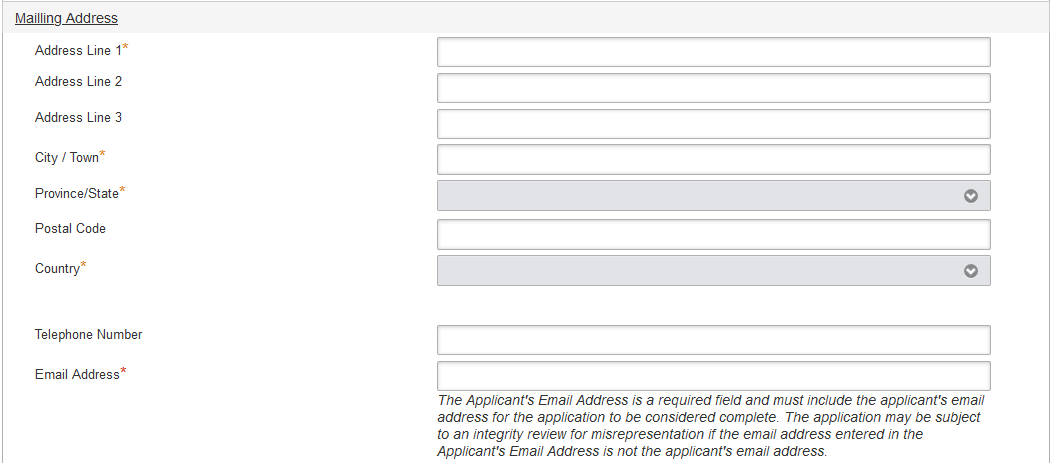

Then select one that applies to you:

2.4 Representative
Choose 'Yes' if you are appointing a representative, otherwise choose 'No'.

Fill in the email address for the Consultant if you select 'Yes'.

Click on the link below for information about use of a representative in your SINP application:
Click the button below to proceed with your application.

3.0 Pre-Application and Applicant Details
The pre-application questions about job offer or employment are designed to direct you to the appropriate application category.
3.1 Eligibility for Application
You must answer the series of questions on this page to determine eligibility and application category.
3.1.a Expression of Interest
If you are eligible under the Occupations In-Demand or Express Entry sub-categories, you will be able to submit an Expression of Interest (EOI).
If you are submitting an EOI for Occupations In-Demand, you must answer the questions as shown below and choose your intended occupation NOC. You must have at least one year of paid work experience in the past ten years in your field of education or training to be eligible.

If you are submitting an EOI for Express Entry, you must be accepted into IRCC's Express Entry Pool, have an Express Entry Profile Number and Job Seeker Validation Code. You must have at least one year of paid work experience in the past ten years in your field of education or training to be eligible.

Note: Please note that the occupations in this dropdown list may change based on Saskatchewan's employment demand forecast.
Your intended occupation may be regulated or require professional certification. Please see the following links for this requirement:
- Regulated Occupations and Licensing Requirements: saskatchewan.ca — Regulated Occupations and Licensing Requirements
- SINP Requirements Related to Professional Status or Licensure: publications.saskatchewan.ca/#/products/102710
If you are invited to apply, the SINP will review your education, work experience and intended occupation and, if required, will notify you to provide the required documentation. If you have an occupation that requires this documentation, the processing of your application will be paused until you obtain the required documentation.
You must respond to all remaining questions below before you can proceed.
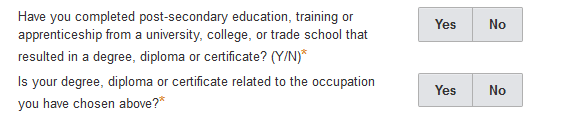
You cannot proceed until all required responses have been saved. Please answer all the required questions and click on the Save button to proceed.
A complete set of steps for Expression of Interest (EOI) can be found at saskatchewan.ca — International Skilled Worker EOI System
3.1.b Job Offer Streams
If you have an offer of permanent, full-time employment in Saskatchewan, you must have received an Employer Position Assessment (EPA) Approval to show proof of this. Once your employer adds your name, you will receive an EPA Approval which includes the job offer details and deadlines sent to your personal email address.
You must also meet the criteria of the sub-category to be eligible.
On the Eligibility for Application page, indicate whether or not you have a valid job offer and EPA Approval:

You must enter the Employer ID and EPA ID. The system will verify this information including your date of birth. If all information matches, selecting "View Job Offer" will show the Job Offer Information page.
If you are NOT applying under the Agriculture Talent Pathway, Innovation and Tech Talent Pathway, or Health Talent Pathway, please answer NO to the following questions:

After confirming that you have a valid job offer, the following series of answers will lead you to:
International Skilled Worker – With Employment Offer Sub-Category

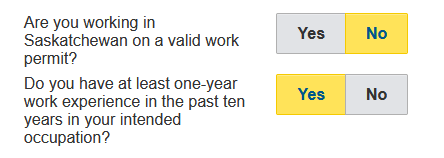
If you are not currently in Saskatchewan on a valid work permit and have at least one year of work experience in the past ten years in your intended occupation:
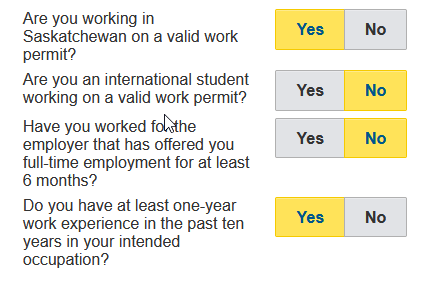
If you are currently working in Saskatchewan on a valid work permit, NOT an international student on a post-graduation work permit and have at least one year of work experience in the past ten years in your intended occupation:
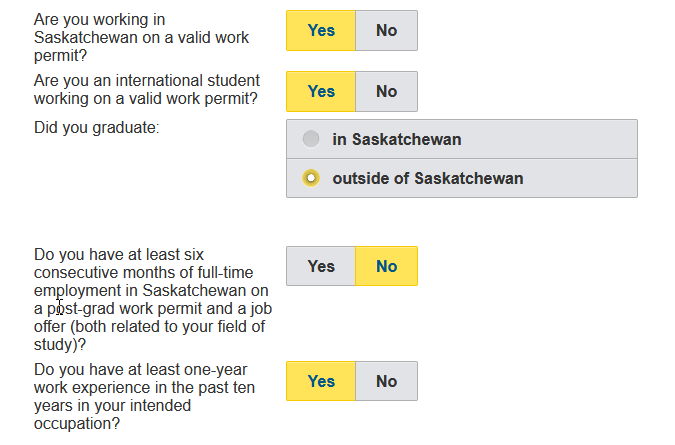
If you are an international student working on a valid work permit who graduated outside of Saskatchewan:
If you are an international student working on a valid work permit who graduated in Saskatchewan but did not meet the criteria of the Student category:

3.1.c Agriculture Talent Pathway
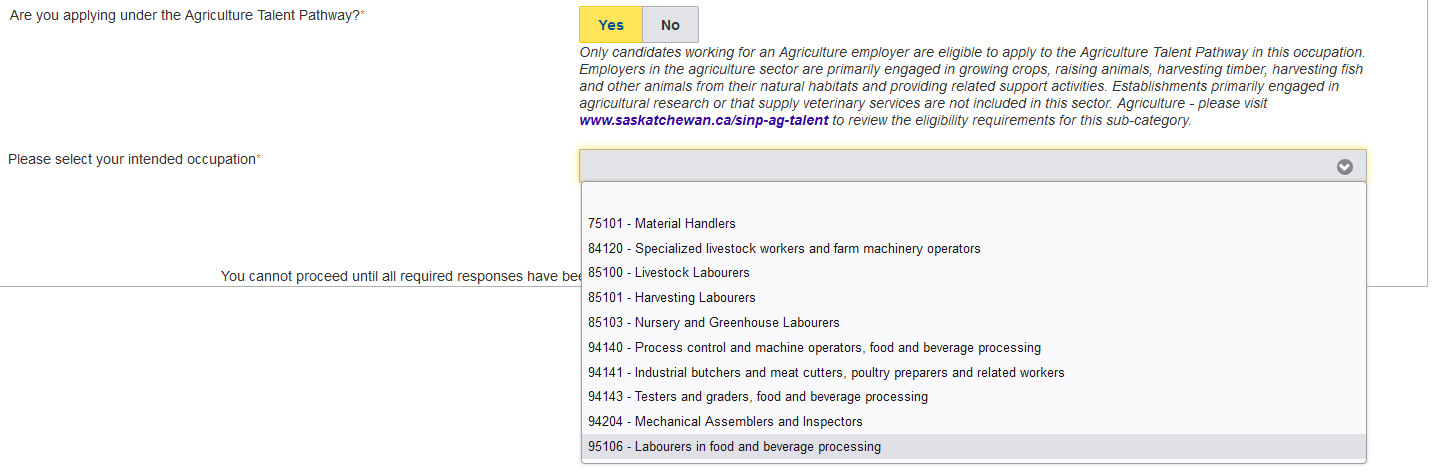
Select "Yes" if you are applying under this category and then select your intended occupation NOC in the drop-down:
3.1.d Innovation and Tech Talent Pathway
Select "Yes" if you are applying under the Innovation and Tech Talent Pathway sub-category.

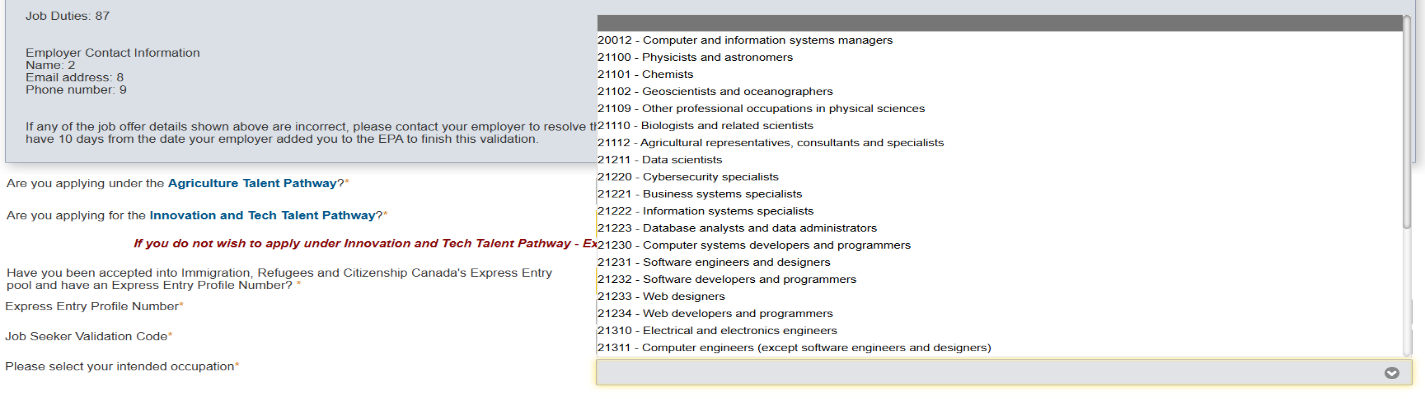
Select your intended occupation NOC in the drop-down:

You must have post-secondary education that relates to the job you've been offered (Master's or Bachelor's degree; or a three-year degree at a university or college; or a diploma that requires two years at a university, college, trade or technical school, or other post-secondary institution).

Select "Yes" to applying under the Innovation and Tech Talent Pathway sub-category and then select "Yes" to "Have you been accepted into Immigration, Refugees and Citizenship Canada's Express Entry Pool and have a Profile Number." You may then enter your Express Entry profile number and Job Seeker Validation Code.

Select your intended occupation NOC in the drop-down:
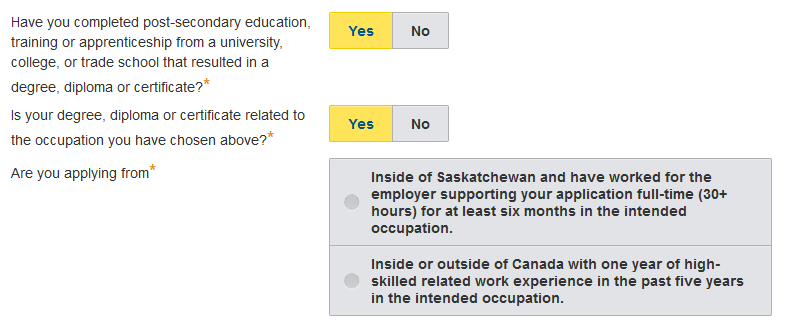
You must have a post-secondary education that relates to the job you've been offered (Master's or Bachelor's degree; or a three-year degree at a university or college; or a diploma that requires two years at a university, college, trade or technical school, or other post-secondary institution).
3.1.e Health Talent Pathway – Non-Express Entry
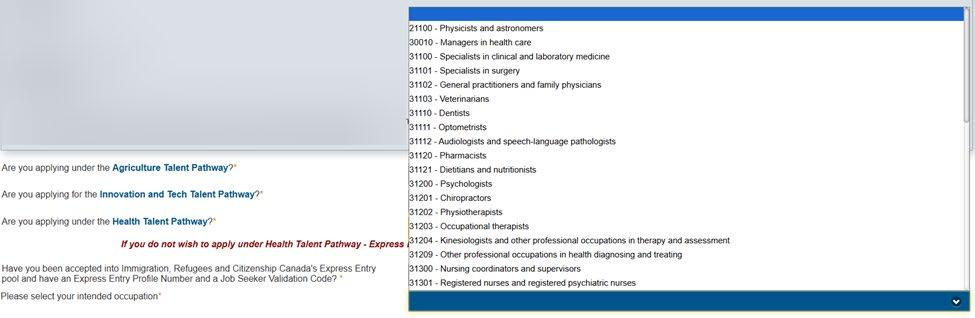
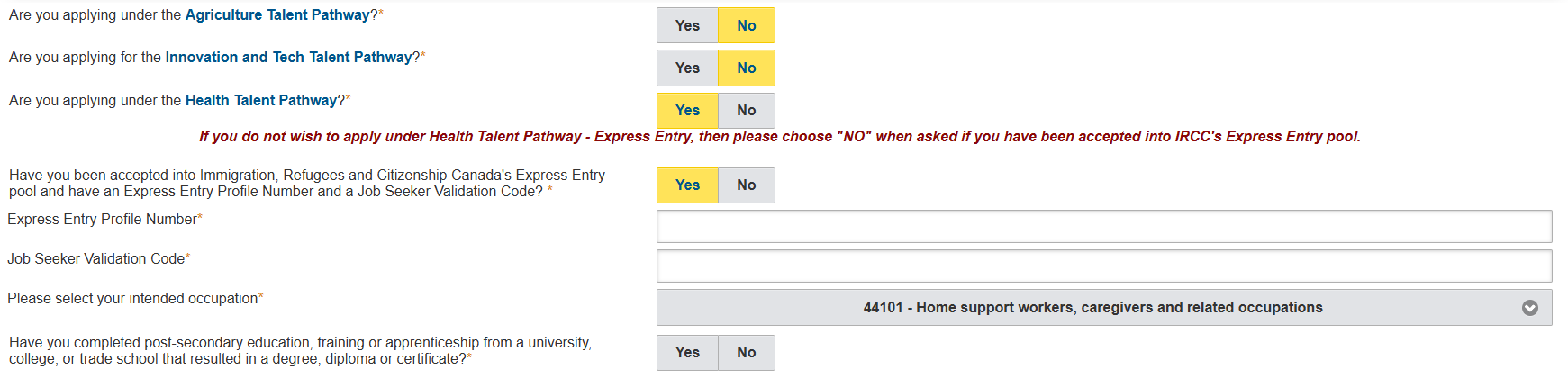
Select "Yes" if you are applying under the Health Talent Pathway.

Then select your intended occupation NOC in the drop down menu:
Have an Express Entry profile and the NOC is 44101. Note: NOC 44101 is not eligible for Express Entry.
Have an Express Entry profile, and your NOC is NOT 44101 and you are applying from Inside of Saskatchewan.
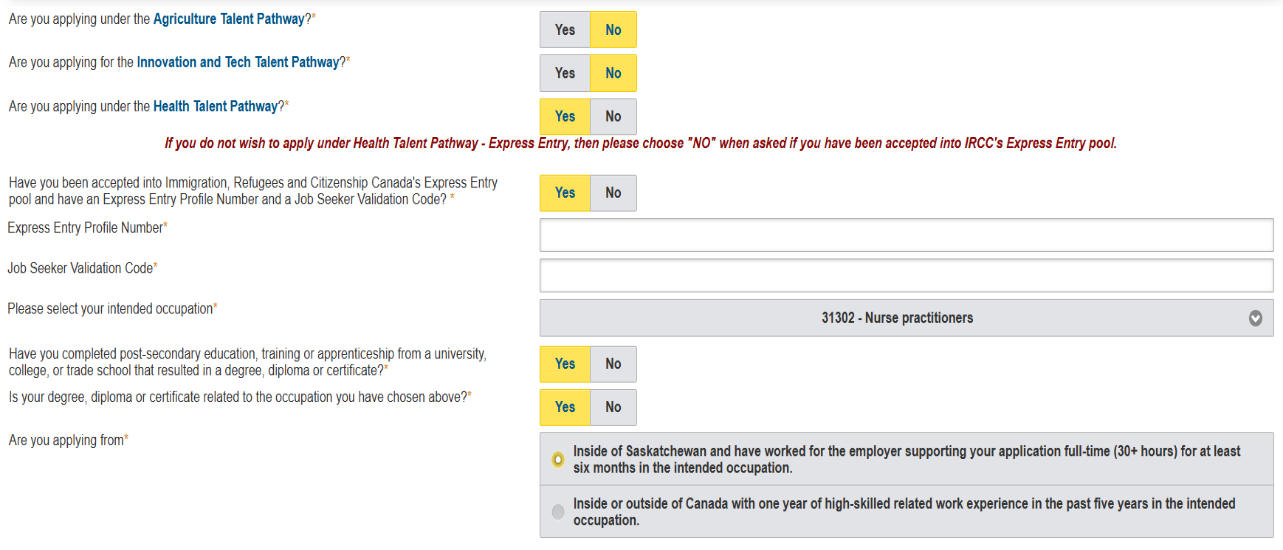
Have an Express Entry profile, and your NOC is NOT 44101 and you are Applying from Inside or Outside of Canada:

3.1.f Saskatchewan Experience – Existing Work Permit
Have worked for at least six-months (780 hours) of full-time (30+ hours per week) work experience in the job with the employer that has provided you the EPA Approval, with a valid work permit. The work experience must be consecutive work experience.
Choose the appropriate drop-down for the occupation NOC you are working in.
***This category is for those applying with any of the criteria under the drop down "I am working" including hospitality occupations and long-haul truck driver occupations.

3.1.g Saskatchewan Experience – Student
Post-secondary education completed in Saskatchewan: You must have at least six (6) months of full-time employment (or 960 hours) in Saskatchewan related to your field of study and have a Post Graduation Work Permit issued by Immigration, Refugees and Citizenship Canada (IRCC).
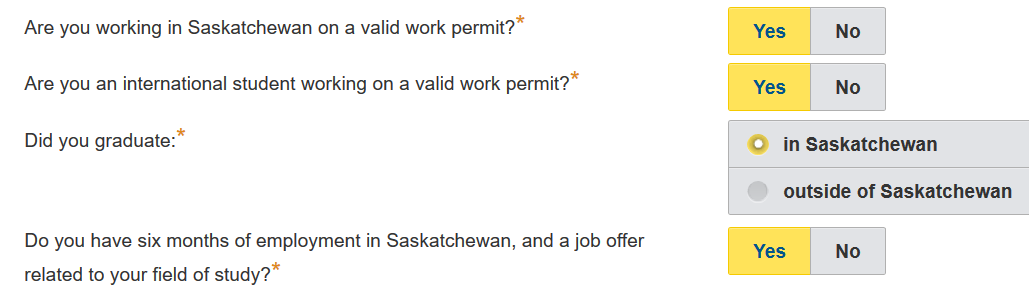
Post Graduation Work Permit (PGWP) holders who graduated from a Designated Learning Institute outside of Saskatchewan are limited to applying to the Health Talent Pathway, Agriculture Talent Pathway, Innovation and Tech Talent Pathway and International Skilled Worker: Employment Offer in an eligible occupation.
Click to save your responses, and click to check the application category you are applying under.


If the category shown is not what you are intending to apply under, you may change your responses by clicking on the button below, or click "No" for more information.


If the category shown is correct, click the "Yes" button and proceed with your application.
3.2 Skilled Worker Points Grid


Click Save, then Next.
3.3 Current Residency and Settlement Destination

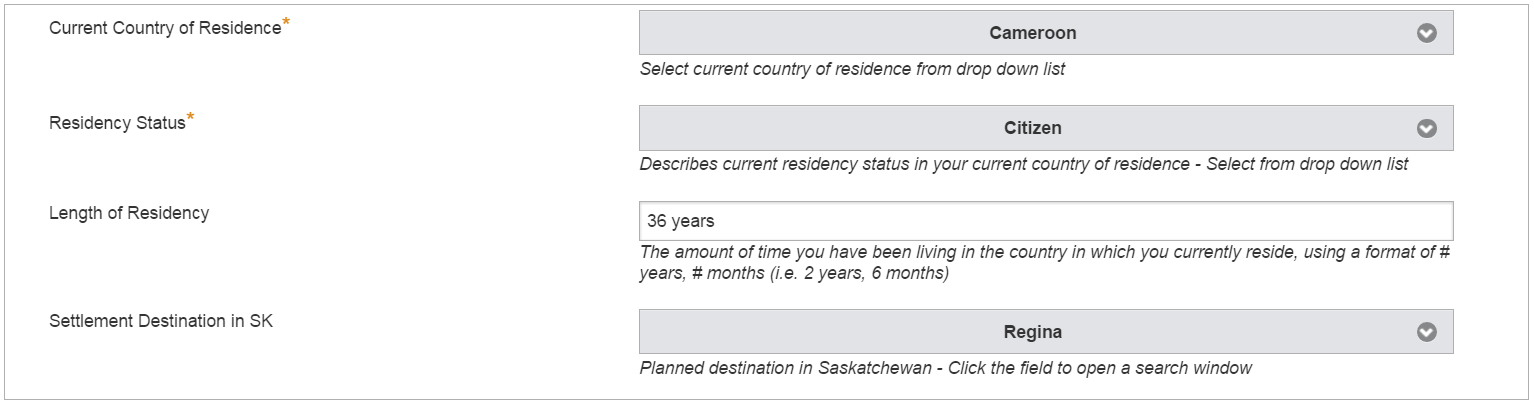
3.4 Applicant Details
- Your age is calculated by OASIS based on your date of birth.
- Type in Birth City/Town.
- Select Birth Country.
- Select Highest Education Level completed.
- Intended Occupation NOC: For Express Entry and Occupation In-Demand Applications, this field will show the NOC you had chosen earlier in your Expression of Interest, which is non-editable. For Agriculture Talent, Innovation and Tech Talent and Health Talent Pathways, Employment Offer, Student and Existing Work Permit Categories, select your Intended Occupation NOC.
Click Save, then Next.
3.5 Uploading your documents
Do not forget to upload a scanned (readable) copy of your document as required. If possible, use a file name that describes each document, i.e. passport, birth certificate – this will help us improve application processing times.
If you have previously uploaded documents under the Files  section, you are only able to view and download these documents. Any upload must be done using "Upload File".
You will not be able to move forward in your application until your documents are uploaded for each section.
To upload your document in OASIS, please click the 'Upload File' button.
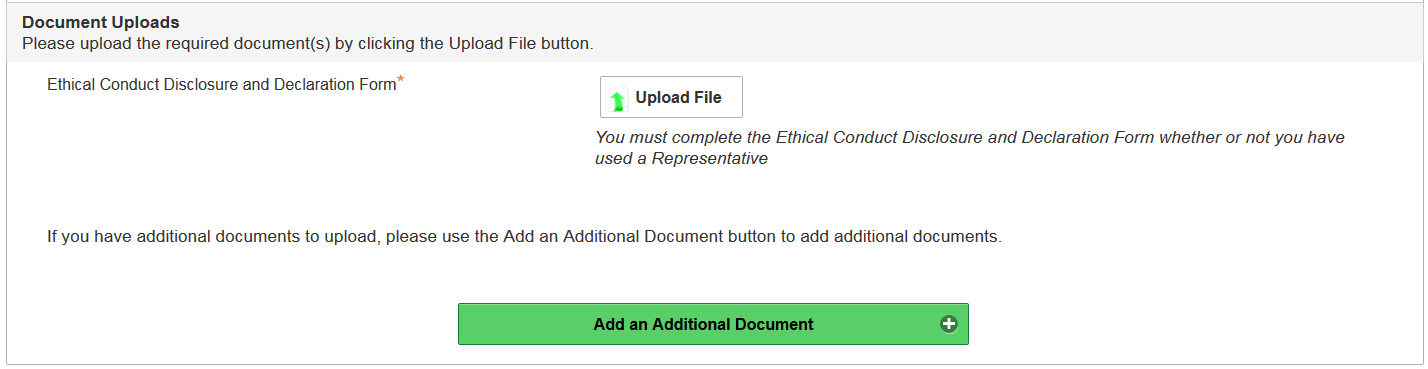
A pop-up window will show up as shown below. Click the 'Browse' button, select the document that you want to upload and then click 'Upload File'.
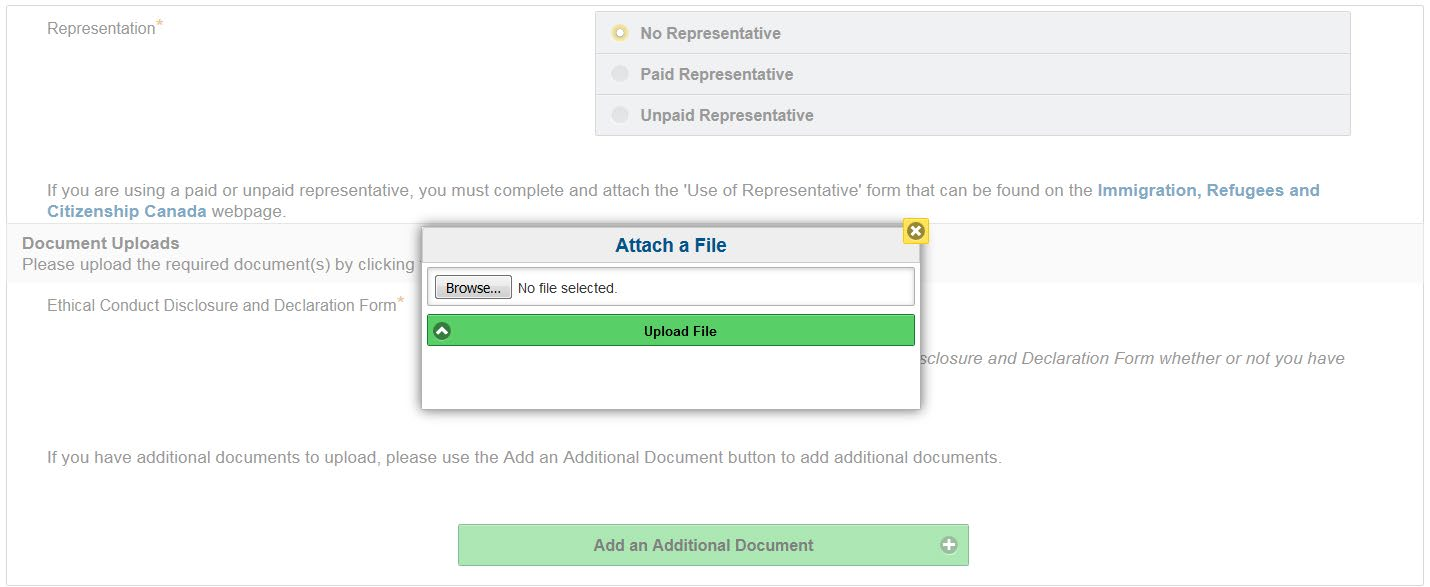
Once a document is uploaded, a pop-up confirmation message will show up on the lower right corner of your screen:

You are able to download the attached document by choosing 'Download File'. If you attached the wrong document, remove it by clicking the 'Remove File' button.

You can upload more files/documents by clicking on the button below. Please see the sample screenshot below.


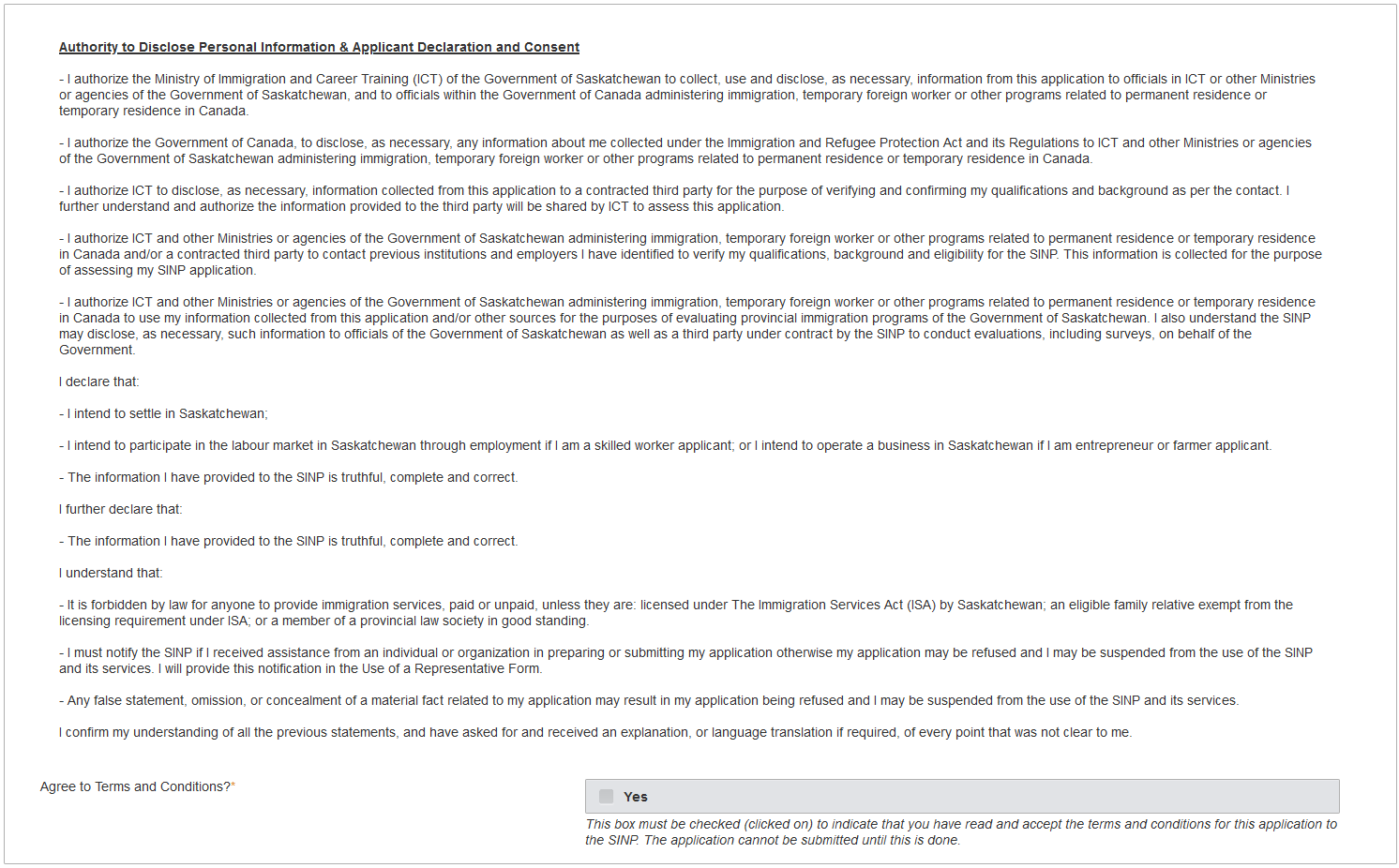
Please read and accept the terms and conditions for this application to the SINP and click Save, then Next.
3.6 Information Disclosure
3.7 Citizenship
Choose your Country of Citizenship. Create another Citizenship record if you have more than one citizenship.

Click Save, then Next.
3.8 Birth Document
Select Birth Document Type from the drop-down list.

Type in your First Name, Middle Name (if applicable), and Family (Last) Name at Birth as it appears on your birth document. You can leave the field blank if it does not apply to you, i.e. Middle Name.

3.9 Passport
- Select the passport-issuing country from the drop-down list.
- Passport Number and Passport Expiry Date will populate automatically from the Birthdate and Address Screen.

Please note that you don't need to create record(s) for your old/expired passport(s).

3.10 Marital Status
Select your current marital status from the drop-down list:

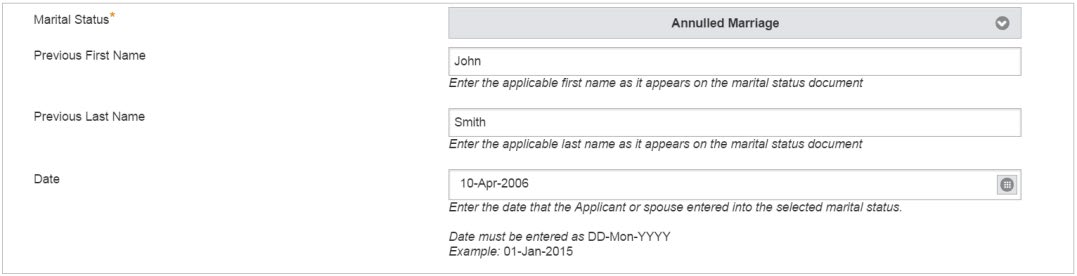
If you are Single, Annulled Marriage, Legally Separated, or Widowed your screen must look like this:

For Common-Law, Divorced or Married:
- Enter your previous First Name and Last Name as they appear on the marital status document and enter the date that you and your spouse entered into the selected marital status.
You must create another marital status screen if you have more than one (1) marital status (for example, if you were divorced and are now married) by clicking this button:


3.11 Education
Under Education, you must answer the following questions. Choose your highest level of Education.

If your intended occupation or job offer requires Professional Certification or Licensure, choose "Yes" to the next question; otherwise, choose "No."
If you have a job offer and want to find out about licensing requirements, please see the following links:
If you do not have a job offer and want to find out about licensing requirements, please visit:
You will find more information in regard to Professional Certification or Licensure under section 3.12 (next section) of this guide.
If you are applying under a category that does not require Education (i.e. Existing Work Permit, or ISW-With Employment Offer, and not claiming points for education), you may choose to click 'Not Applicable' to the following question. Otherwise, follow "Enter/Change Education" steps below. After entering all your Education, choose 'Yes' and Save.

3.11.a Enter/Change Education
To enter your Education Credentials, click the icon on the upper right corner of your screen.

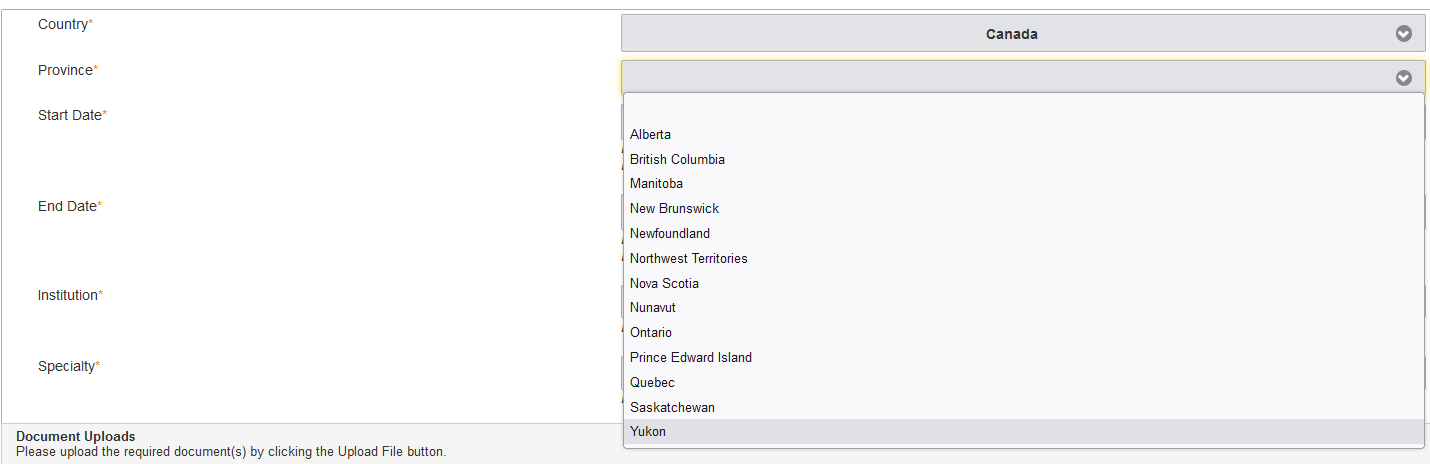
On the Education screen, enter the following information as it appears on your post-secondary or trade-related degree, diploma, or certificate: Country, Start Date, and End Date in DD-Mon-YYYY format, Institution (where education was received), and Specialty (program of study).
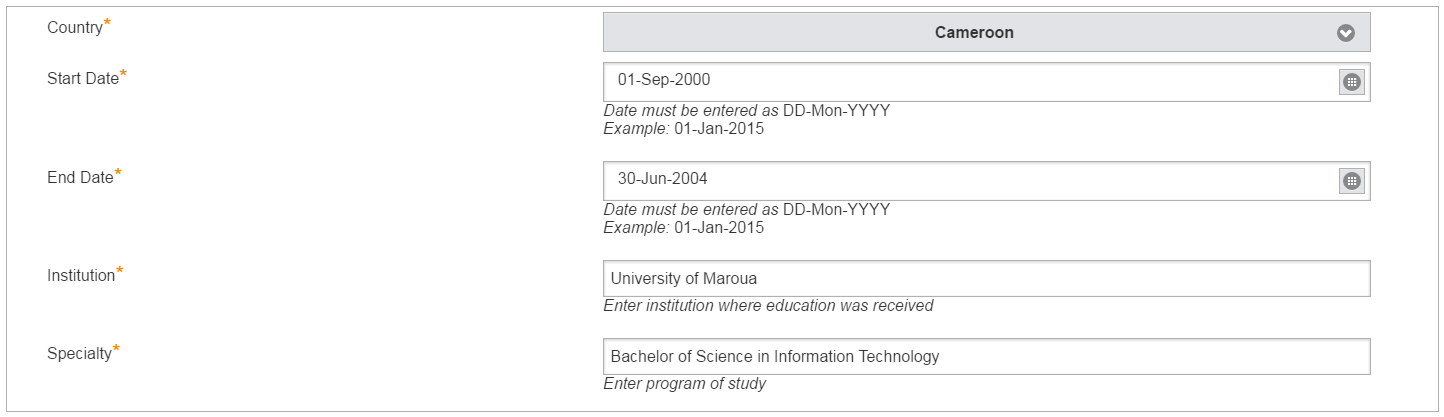
If in Canada, select the province your post-secondary education was completed.
Click Upload File, then select Browse to upload a copy of your education documents. Find the document in your file directory, select the document and click Upload File. Please upload your document where applicable, as shown below:

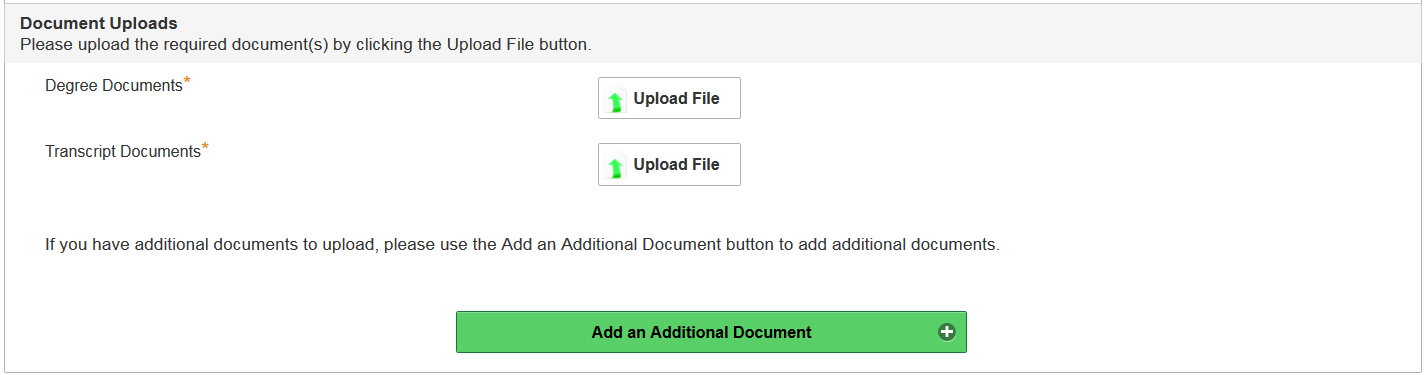
Click Save.
Click the button below to add another record.

Click the button below to go back to the main Education screen.

Click the button below to check for completeness of entries for education.

3.12 Regulatory or Licensing Credentials and Education Credentials Assessment
Regulatory or Licensing Credentials
If you intend to work in an occupation that is regulated in Saskatchewan and requires mandatory (compulsory) certification or licensing in Saskatchewan, you are required to obtain proof of eligibility for Saskatchewan licensure to work in that profession before you apply to the SINP. Proof of eligibility for Saskatchewan licensure from the regulatory body is required as part of your SINP application. If your application does not include this proof of eligibility, then the SINP may reject your application and you can reapply when you obtain this proof.
If you intend to work in a SKILLED TRADE you are required to have a certificate of qualification (also known as a letter of invitation) in your skilled trade from the Saskatchewan Apprenticeship & Trade Certification Commission.
Please click on the link below for more information in regards to regulated occupations or licensing requirements:
Education Credentials Assessment (ECA)
Applicants applying through Express Entry, Occupation in Demand, International Skilled Worker with Employment Offer and Health Talent Pathway (excluding trade occupations) must include an Educational Credential Assessment (ECA) from a designated organization.
Please click on the link below for information about obtaining an Educational Credentials Assessment (ECA):
For sub-categories that require an ECA, you must upload a copy of your ECA on the main Education page for all education obtained outside Canada.
Click the icon, then select Browse. Find the document in your file directory, select the document and click Upload File.

Do the same for your Regulatory or Licensing Credentials (Saskatchewan Licensure), if applicable.

To check the education screens for completeness, on the main Education record, click the button below.

Click Save, then Next.
3.13 Work Experience
Disclose your work experience by answering "Yes" to the question:

Click Save.

Click Enter/Change Work Experience to create the work experience screen.
Fill in the required fields:
- Select the Country.

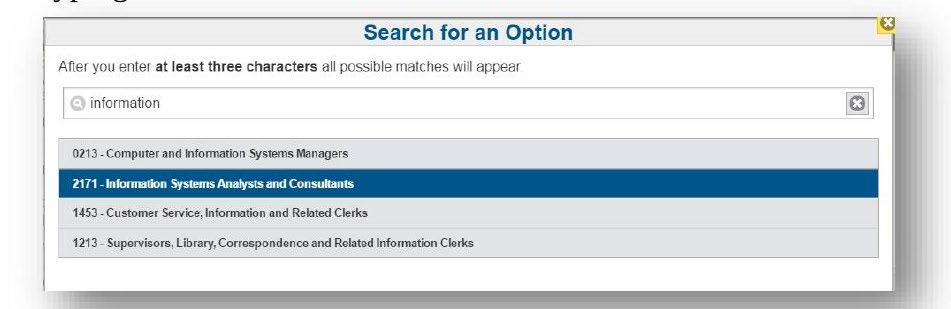
- Search for and select the NOC ID that corresponds to your work experience, by entering at least three characters.
- If your country of work experience is Canada, you will need to fill in the Province field.
- Enter the Start Date and End Date as DD-Mon-YYYY.
- Enter the Employer — the name of your employer (company name).
- Enter the Employer Contact Name — the employer's contact person.
- Enter the City/Town — the location of employment.
- Enter your Position Title held while employed with this Employer.
Select the type of government-issued document (that you will be providing) from the drop-down menu:
Upload the government issued documentation:

Upload your Work Experience reference letter:

To upload documents, click the icon then select Browse. Find the document in your file directory, select the document and click Upload File.

You can upload more files/documents by clicking on the icon.

Click Save.
If your work experience was gained within Saskatchewan, you must provide proof of residency and employment in the province.

To upload documents, click the icon then select Browse. Find the document in your file directory, select the document and click Upload File.

You can upload more files/documents by clicking on the button below.

Click Save.
Required documentation for work experience:
- an official reference letter from the employer printed on company letterhead, which includes
- the applicant's name, the company's contact information (address, telephone number and email address), and the name, title and signature of the immediate supervisor or personnel officer at the company, along with their telephone number and email address.
- all positions held while employed at the company, along with the job title, duties and responsibilities, job status (if current job), dates worked for the company, number of work hours per week (total number of hours worked in SK for student applicants) and annual salary plus benefits.
- if the applicant is self-employed, articles of incorporation or other evidence of business ownership, evidence of self-employment income and documentation from third-party individuals indicating the service provided along with payment details.
Self-declared main duties or affidavits are not acceptable proof of work experience or self-employment.

Click the button below to create another record.

Click the button below to continue with your application.
To check work experience records for completeness, on the main work experience screen, click the button below.

Once this section is completed, check "Yes" to the work experience question:

Click Save, then Next.
3.14 English/French Ability

Choose Language Proof Type:

Fill in the required fields as it appears on your document:

Click the link below for Language Requirements for SINP:
Click the icon, then select Browse. Find the document in your file directory, select the document and click Upload File.
If you have a valid Language test for the second official language, select "Yes". Otherwise, select "No".

If you selected "Yes", please provide the language test scores in the fields provided and you must attach a copy of the official language test results.
Click Save, then Next.
3.15 Final Page of Part 1
Choose "Yes" if you have a relative in Saskatchewan, otherwise choose "No".

Choose "Yes" if you have submitted a provincial or federal Canadian immigration application, otherwise choose "No".

You are not required to upload any documentation at this point.
Click Save, then click the button below.
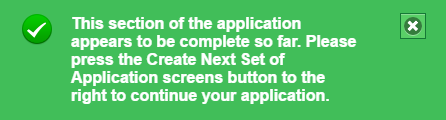
If you have done everything correctly, this message will come up:
Click the button below to proceed with your application.
3.16 Making a Change on Part 1 and Applicant Details
If you need to make a change on your pre-application and/or applicant details:
- Click on the Home
 button, if required.
- Click on Continue Applicant Details section of SINP Application.
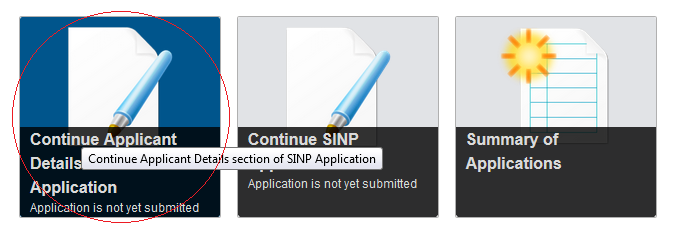
- Click on the Applicant Details-Final Page record, then click Make Changes to Part 1.

- Make your changes or upload documents.

- When you are done, ensure you click the button below.
Click the button below to proceed.
4.0 Skilled Worker Application Screens
After you click the Create Part 2 button, the Application screen will come up on the left of your screen.
4.1 Application Screen
The first screen will show the application category. Below is a sample screen for International Skilled Worker – Express Entry:
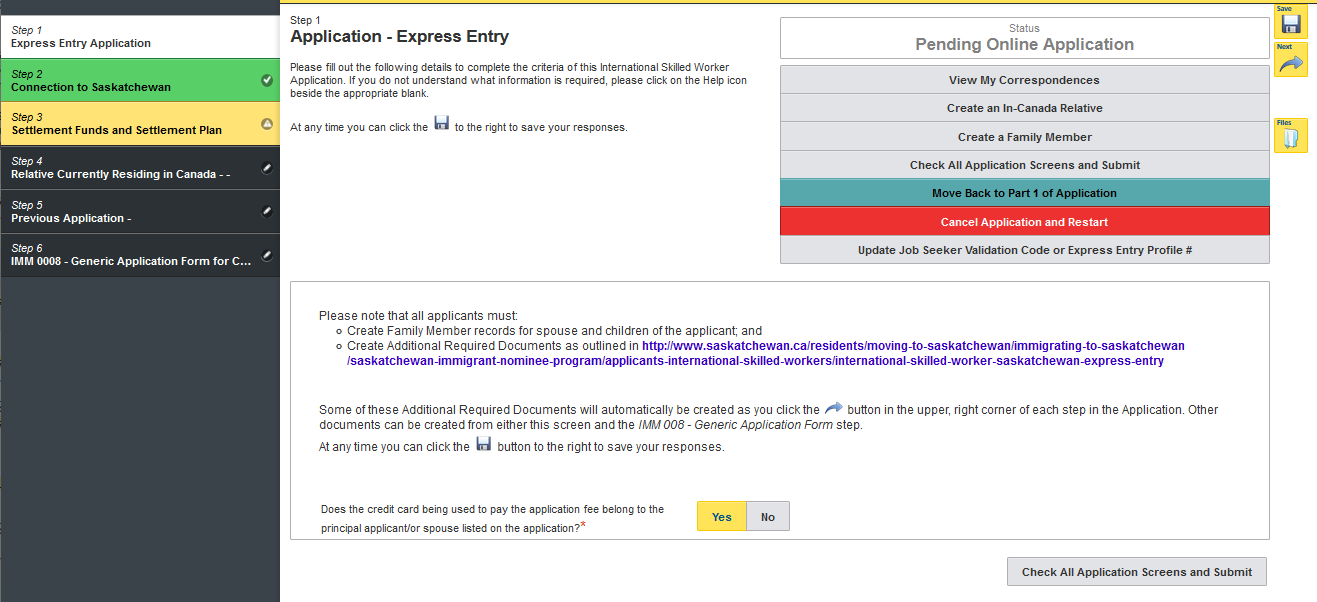
A $500 fee is required for all SINP categories. You must indicate whether the credit card used to pay the application fee belongs to the principal applicant or spouse listed on the application:

If the credit card used belongs to another individual, please specify the credit card holder's relationship to the applicant and reason for paying:

4.2 Connection to Saskatchewan

Choose "Yes" for the above question if one of these items apply to you:
- Studied in Saskatchewan
- Worked in Saskatchewan
- Close Relative in Saskatchewan
Otherwise, choose "No" and click "Next".
4.2.a Studied in Saskatchewan
If you have studied in Saskatchewan and claiming points, fill in the fields as shown below:
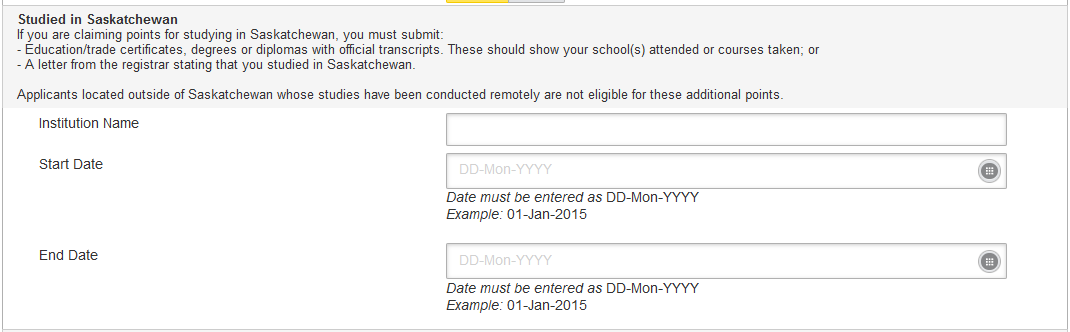
If you are claiming points for studying in Saskatchewan, you must submit the following documents:
- education/trade certificates, degrees or diplomas with official transcripts wherever applicable, showing school(s) attended or courses taken; or
- a letter from the registrar stating that you studied at a Saskatchewan Institute.

4.2.b Worked in Saskatchewan
If you have work experience in Saskatchewan, fill in the fields as shown below:
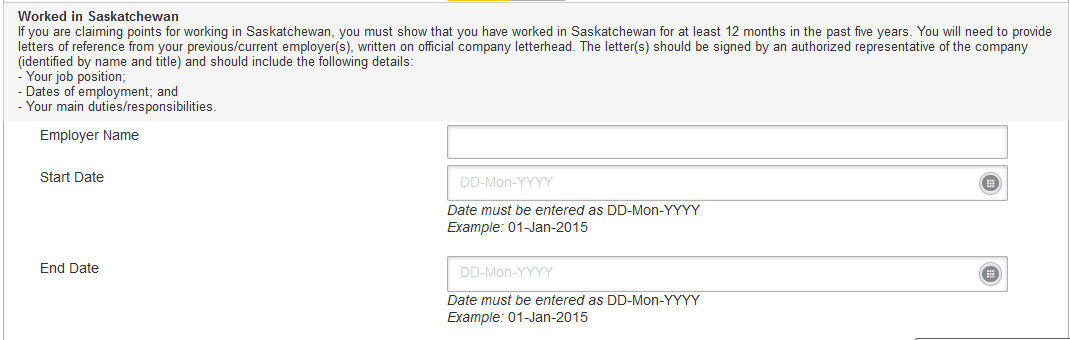
If you are claiming points for working in Saskatchewan, you must submit documents to verify that you have previously worked in Saskatchewan for a minimum of 12 months in the past five years. You will need to provide the following:
- Letters of reference from your previous employer(s) that are written on official company letterhead and signed by an authorized representative of the company who is identified by name and title along with contact information. Each letter should indicate the following:
- your job position;
- dates of employment; and,
- your main duties/responsibilities.
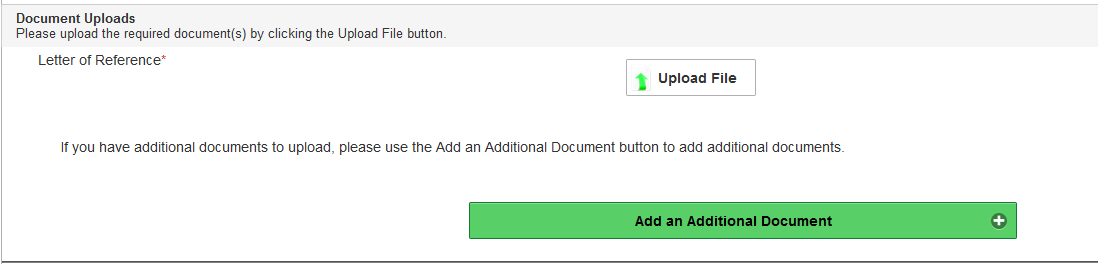
To prove your work experience in Saskatchewan, you must upload a letter of reference.
4.2.c Close Relative in Saskatchewan
If you have a close relative in Saskatchewan and claiming points, fill in the required field(s) as shown:


If you are claiming points for a close family member, you must provide the following from the family member:
- birth certificate, marriage certificate and or any other official government education or religious documents that prove your relationship to your close family relative. Please note: the SINP does not accept affidavits.
- copy of the relative's Canadian permanent resident or citizenship card, or Canadian passport;
- proof that they have been living in Saskatchewan for the past twelve months and are self-sufficient:
- utility bills from the past twelve months from either SaskPower; SaskEnergy; a city or town office. (We will not accept telephone, cellular or cable bills);
- Saskatchewan Health Card or Saskatchewan Driver's license;
- proof that the family member is a registered tenant of a Saskatchewan address (lease agreement and rental receipts OR proof of ownership) and names of other occupants at this address including their relationship to them; and,
- proof of receipt of income for the past three months.
If your close relative has supported another applicant, you may receive a warning message. Close family members can only support one application at a time (one household can support one application at a time). If your close family member is already supporting an SINP application, they cannot support your application until the previous nominee they are supporting has lived and worked in Saskatchewan for at least six months.
If your close relative has supported another applicant, you must indicate if the previous applicant has landed in Canada and lived in Saskatchewan for at least six months. If yes, you will be required to upload proof that the previous applicant has been settled successfully in Saskatchewan for at least six months.
If your close relative is currently supporting another application and that applicant has not been settled in Saskatchewan for at least six months, you cannot claim or receive 20 points for that relative. If you select no, you will receive the warning message below. Please note, if you proceed to submit an application without a close relative after claiming points for the relative in your Expression of Interest, your file will be returned and you will not be issued a refund.
If OASIS does not detect that your relative is currently supporting another relative, you will not receive a warning message. Please note that even if you do not receive a warning, your close relative may still be supporting an older application. It is your responsibility to ensure that your close relative is eligible to support your application.


Click the button below to create a record for your relative currently residing in Canada.

Click the icon, then select Browse. Find the document in your file directory, select the document and click Upload File.

You can upload additional files/documents by clicking on the button below.

4.3 Federal Forms
The following are the required (mandatory) federal forms:
- IMM 0008 – Generic Application Form for Canada
Click the icon, then select Browse. Find the document in your file directory, select the document and click Upload File.
Click Save, then Next.
Do the same for the rest of the forms.
- IMM 5406 – Additional Family Information
- Schedule A – Background/Declaration
On the upper right corner of your screen, create the following forms if they apply to you:
- IMM 5476 – Use of Representative
- IMM 5475 – Authority to Release Personal Information

Click the delete icon if you added a form in error. You can download the forms at:
- International Skilled Workers link, then choose the sub-category. Or
- Saskatchewan Experience link, then choose the sub-category.
4.4 Step 1 Create Buttons
Click the Create… button(s) if it applies to you:

Click Create if you are currently working in Canada.

Click Create if you have a relative currently residing in Canada.

Click Create if you have family member(s) coming with you to Canada.

4.5 Work Permit
Work Permit record will be created automatically if you apply under the Saskatchewan Experience category. If you are applying under International Skilled Category – With Employment Offer but currently working in Canada, please create a work permit record.
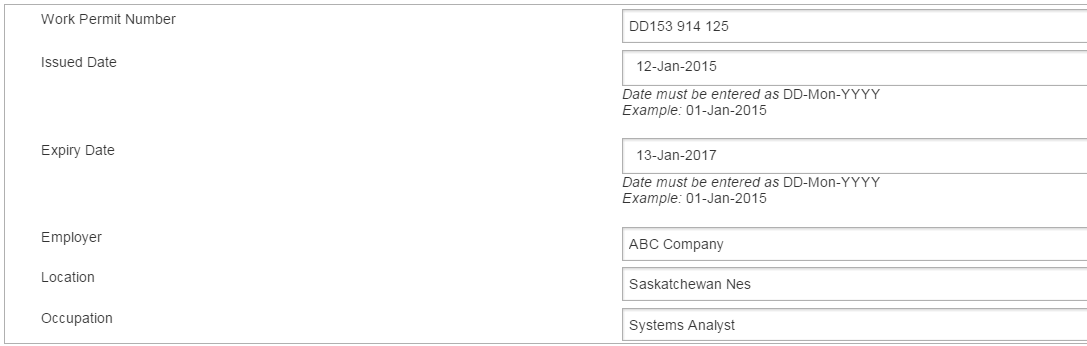
Fill in the required fields as it appears on your document:
Click the icon, then select Browse. Find the document in your file directory, select the document and click Upload File.

If you are on an open spousal work permit please click yes.
Click Save, then Next to continue.
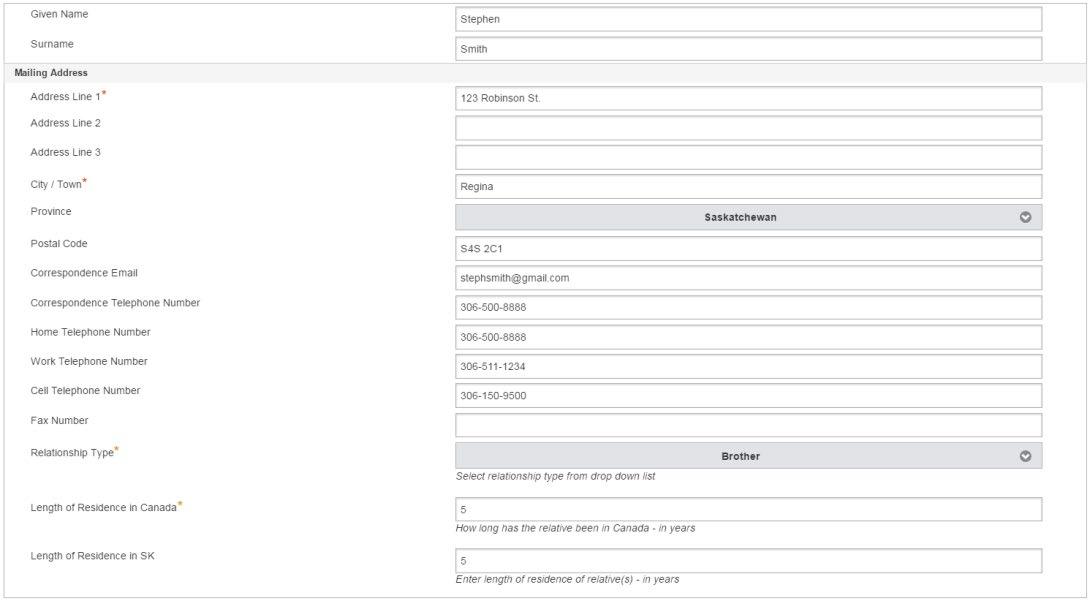
4.6 In-Canada Relative
'Relative currently residing in Canada' record will be created automatically, if you answered 'Yes' to this question:

Fill in the required fields as shown below:
Click the icon, then select Browse. Find the document in your file directory, select the document and click Upload File.
Click Save.

Click the button below to add another In-Canada relative.

Click the button below to delete a screen if it was added by mistake.
4.7 Settlement Funds and Settlement Plan
4.7.a Settlement Plan
You need to create and attach a settlement plan.
Upload your Settlement Plan by clicking the button below, then select Browse. Find the document in your file directory, select the document and click Upload File.
4.7.b Settlement Funds
You need to maintain the minimum funds required for the size of your family for a minimum of three months prior to your application.

Fill in the required fields in each sequence as shown below:

You must attach a copy of your account statement(s).

Click the icon, then select Browse. Find the document in your file directory, select the document and click Upload File.

A list of eligible settlement proof of fund documents is shown below the upload button, including the number of months for funds required.
If you are providing additional documents related to the account in a particular sequence, click Add an Additional Document and upload the document.

If you are providing another Settlement Fund account, click Add another Settlement Funds to create the next sequence.

Once you are finished entering your Settlement Plan and Settlement Funds, click Save, then Next, to proceed.
Required documentation for Settlement Funds:
The minimum required amount for your application is posted on our website. Please click on this link, choose the category you are applying under, click on the "Required Documents" tab, and find "Required Documents, Settlement Funds".
Proof of funds must:
- be official letters, official statements, and/or certificates from one or more financial institutions.
- have been maintained at least 3 months prior to submitting your application and maintained throughout the entire immigration process (not expire after the application has been submitted).
- be in the name of the principal applicant or spouse or held jointly.
Fund statements must show a detailed transaction history for at least three months prior to submitting an application and include the type of currency, fund holder's name, contact information of the financial institution, account numbers, transactions and balances.
All documents not issued in English or French must be accompanied by a certified translation.
To determine whether settlement funds are sufficient, the account must show that when the account was at its lowest amount, it met the settlement requirement for the size of the household.
The following funds will be accepted:
- Personal chequing or savings accounts
- Bonds
- Cash value life insurance
- Guaranteed Investment Certificate (GICs) or Certificates of Deposit
- Mutual Funds
- Provident Funds (an official letter from the provident fund organization indicating the amount of funds that are accessible is required)
- Registered Retirement Savings Plans (RRSPs)
- Stocks
- Tax Free Savings Accounts (TFSAs)
- Term deposits and time deposits (must be valid at the time of application and remain valid throughout the entire application process)
- Treasury Bills
Debentures, credit cards, lines of credit, gold, cash, property or businesses are NOT accepted as settlement funds.
4.8 Accompanying and Non-Accompanying Family Member
- is under the age of 22 and does not have a spouse or common-law partner; and/or
- has depended on your financial support because of a mental or physical condition.
Parents and siblings of the principal applicant cannot be included in the SINP application.
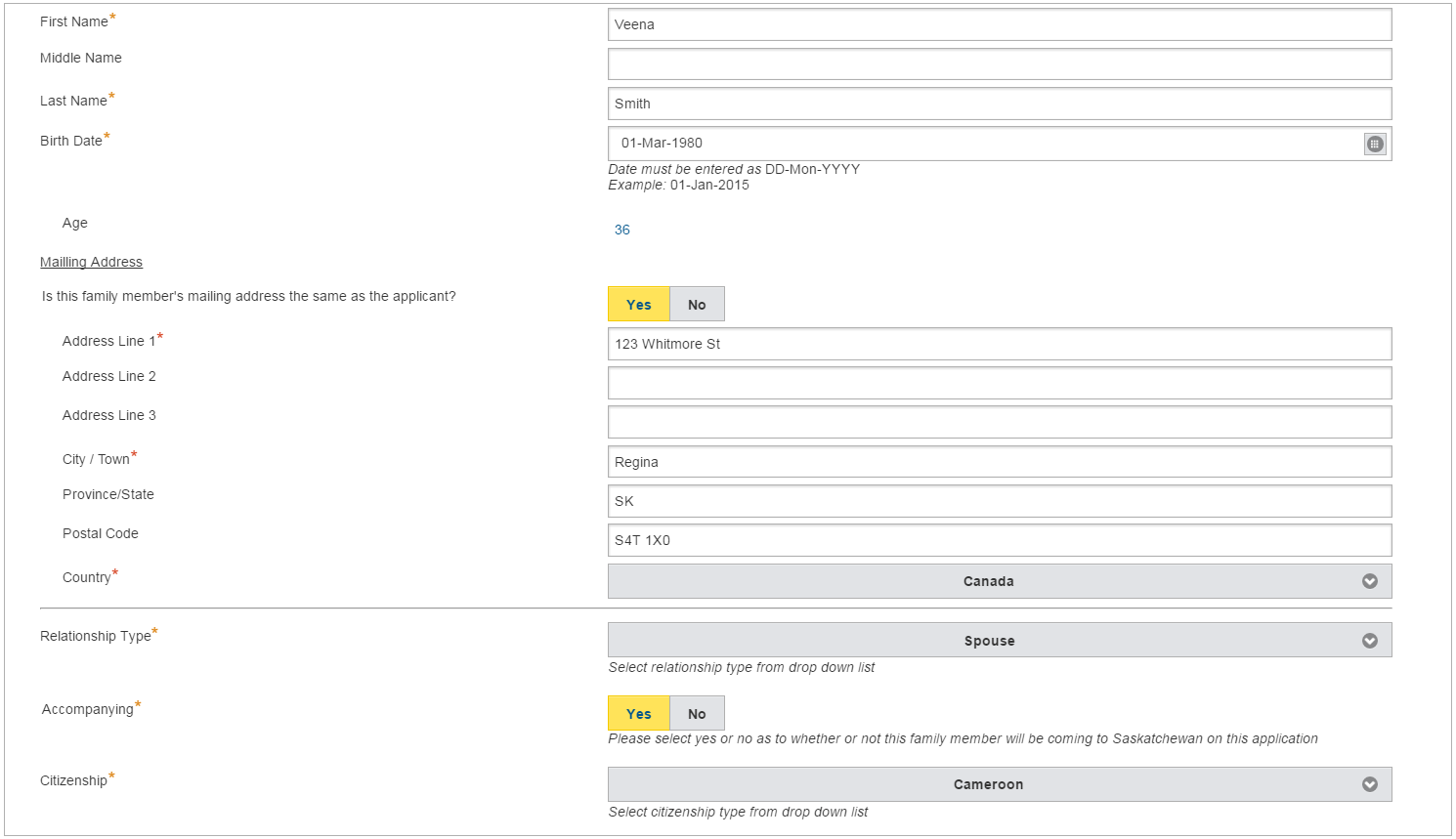
Under Step 1, click Create a Family Member if you have family member(s) coming with you to Canada.

Fill in the required fields as shown below:
Click Save.

Click the icon if this screen was created in error.

Click Create/Change Application Screens for Family Member to add screens for:
4.8.a Accompanying Dependant under 18 years of age
- Birth Document
- Passport
4.8.b Accompanying Dependant 18-21 years old
- Birth Document
- Passport
- IMM 5406 - Additional Family Information
- Schedule A – Background/Declaration
4.8.c Accompanying Spouse
- Birth Document
- Passport
- IMM 5406 - Additional Family Information
- Schedule A – Background/Declaration
4.8.d Non-Accompanying Spouse
- No screen required
4.8.e Non-Accompanying Dependant 18 years old or older
- No screen required
4.8.f Non-Accompanying Dependant under 18 years of age
- Custody/Child Support
You must fill out the following screen and attach the required document(s).

Birth Document – Fill in First Name, Middle Name (if applicable), and Family Name at Birth – as it appears on the birth document.
If you have a family member who was born in Canada, you must create a record and attach the Birth Certificate to prove Canadian citizenship. Passport is not required.
Passport – Fill in Country, Passport Number (without spaces), and Passport Expiry Date (in DD-Mon-YYYY format) as it appears on your document.

For the Spouse, fill in Previous First Name, Previous Last Name and Date that Spouse entered into the selected marital status and attach required document(s). Click Create another Marital Status to add another marital status record.
4.8.g IMM 5406 – Additional Family Member Information
You must download, fill in, and attach this federal form.
4.8.h Schedule A – Background Declaration
You must download, fill in, and attach this federal form.
For each screen, click the Save icon  to save your entries, and the Attach icon
  to attach the required document(s).

Click the icon, then click the icon to continue your application.

4.9 Job Offer
On the Job Offer record, the fields will fill in automatically based on the EPA values you enter in the Eligibility section. You must enter the Job Offer date, upload the Job Offer Letter and select validate.
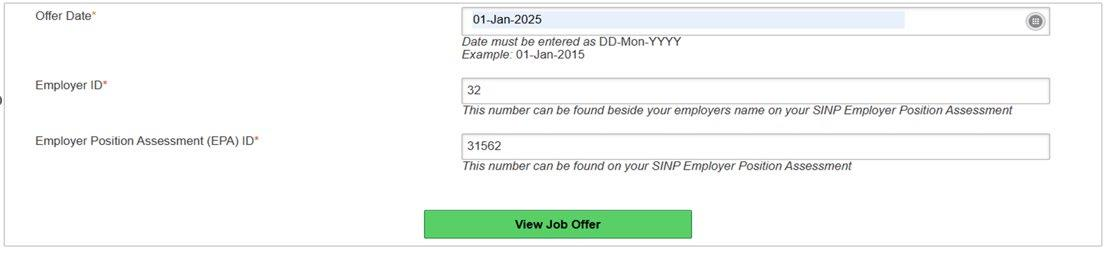
Please note that you cannot submit your SINP application if the job offer validation fails or you miss the deadline to submit as indicated in your EPA Approval.
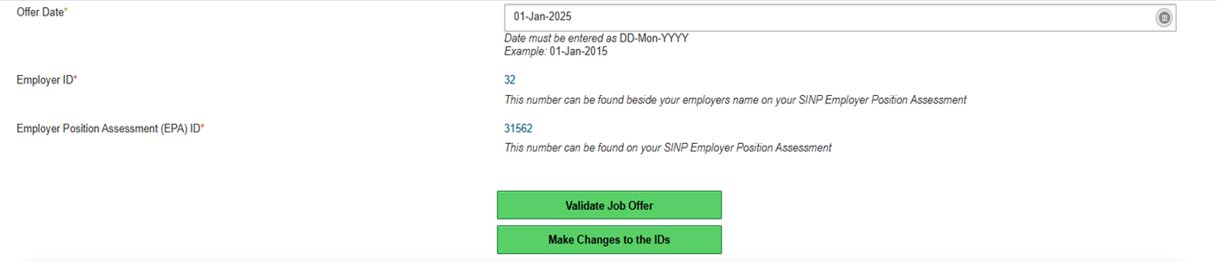
The Letter of Offer must:
- be addressed to the principal applicant;
- state the job title, duties and responsibilities, wage, benefits, and company contact information;
- list the location (i.e., town/city) of your position in Saskatchewan;
- be issued on the company's letterhead; and,
- be signed by the employer.

You must also click on the Validate button before you proceed to the next step, otherwise you can't submit your application as it will be flagged as incomplete.

Click Next to continue.
Upload a copy of your Job Offer Letter and click the Save icon  to save your entries.
4.10 Proof of Licensure
If you are applying under Health Talent Pathways, you must provide a copy of your medical license, and fill in these fields:

Please note that SRNA is now known as the College of Registered Nurses of Saskatchewan (CRNS).
Click the Save icon  to save your entries, and the Attach icon
  to attach the required document(s).
Click Next to continue.
4.11 Driver's License
If you are applying as a Truck Driver under the Existing Work Permit Sub-Category, you must have a valid Class 1A Saskatchewan Driver's License.
Fill in these required fields:

4.11.1 Endorsement
Add an endorsement record. This can be found on your driver's license:

Click Create a Licence Endorsement to add another endorsement record.

4.11.2 Restriction (if applicable)
Add a restriction record if it applies to you. This can be found on your driver's license.

Click Create a Licence Restriction to add another restriction record.

Attach a copy of your Class 1A Saskatchewan Driver's License.
Click the Save icon  to save your entries, and the Attach icon
  to attach the required document(s).
4.12 Previous Application
If you have previous provincial or federal Canadian applications, you must fill in these required fields:
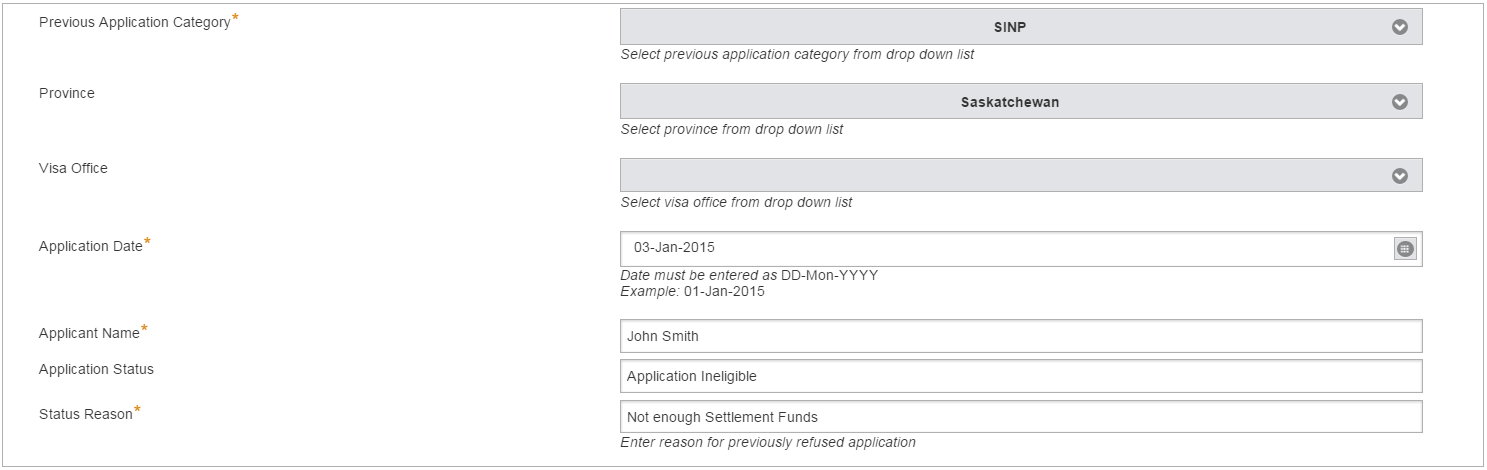
Attach final document(s) received in regards to your previous application, i.e. IRCC Refusal Letter, SINP Ineligible Letter, etc.
Click the Save icon  to save your entries, and the Attach icon
  to attach the required document(s).

Click the icon to create another record.
Click Next to continue.
4.13 Required Application Screens for Each Category
4.13.1 International Skilled Worker
a. Occupations In-Demand:
- Settlement Funds and Settlement Plan
- Relative Currently Residing in Canada (if applicable)
- Connection to Saskatchewan
- Family Members (if applicable)
- Federal Forms
b. Express Entry:
- Settlement Funds and Settlement Plan
- Relative Currently Residing in Canada (if applicable)
- Connection to Saskatchewan
- Family Members (if applicable)
- Federal Forms
c. With Employment Offer:
- Job Offer
- Work Permit (if applicable)
- Family Members (if applicable)
- Federal Forms
d. Agriculture Talent Pathway:
- Job Offer
- Work Permit
- Family Members (if applicable)
- Federal Forms
e. Innovation and Tech Talent Pathway:
- Job Offer
- Work Permit (if applicable)
- Family Members (if applicable)
- Federal Forms
f. Innovation and Tech Talent Pathway – Express Entry:
- Job Offer
- Work Permit (if applicable)
- Family Members (if applicable)
- Federal Forms
g. Health Talent Pathway:
- Job Offer
- Medical License
- Work Permit (if applicable)
- Family Members (if applicable)
- Federal Forms
h. Health Talent Pathway – Express Entry:
- Job Offer
- Medical License
- Work Permit (if applicable)
- Family Members (if applicable)
- Federal Forms
4.13.2 Saskatchewan Experience
a. Existing Work Permit:
- Job Offer
- Work Permit
- Driver's License (if applicable)
- Driver's License Endorsement (if applicable)
- Driver's License Restriction (if applicable)
- Family Members (if applicable)
- Federal Forms
b. Students:
- Job Offer
- Work Permit
- Family Members (if applicable)
- Federal Forms
5.0 Check Application Screens and Submit
Click Check All Application Screens and Submit to submit your application. Make sure to review all warnings and errors before submission.

It is important that all required documents are attached in your application. If you submit an incomplete application where documents are missing from your application, your application will be rejected and your fee is non-refundable. Additional documents sent after submitting your application will not be accepted unless requested.
6.0 Fee Payment – All SINP Categories
Please note that you will not be able to make changes to your application after making the payment. Once the fee is paid, your application will be submitted automatically. Additional documents sent after submission will not be accepted.
After clicking "Check All Application Screens and Submit" button, an Invoice Page stating payment due is displayed. Invoice status is on "Pending" until payment is successful.

After entering your credit card information and reviewing the payment due, click on "Pay".
After successful payment the status will show "Payment Received" and your application has been submitted.
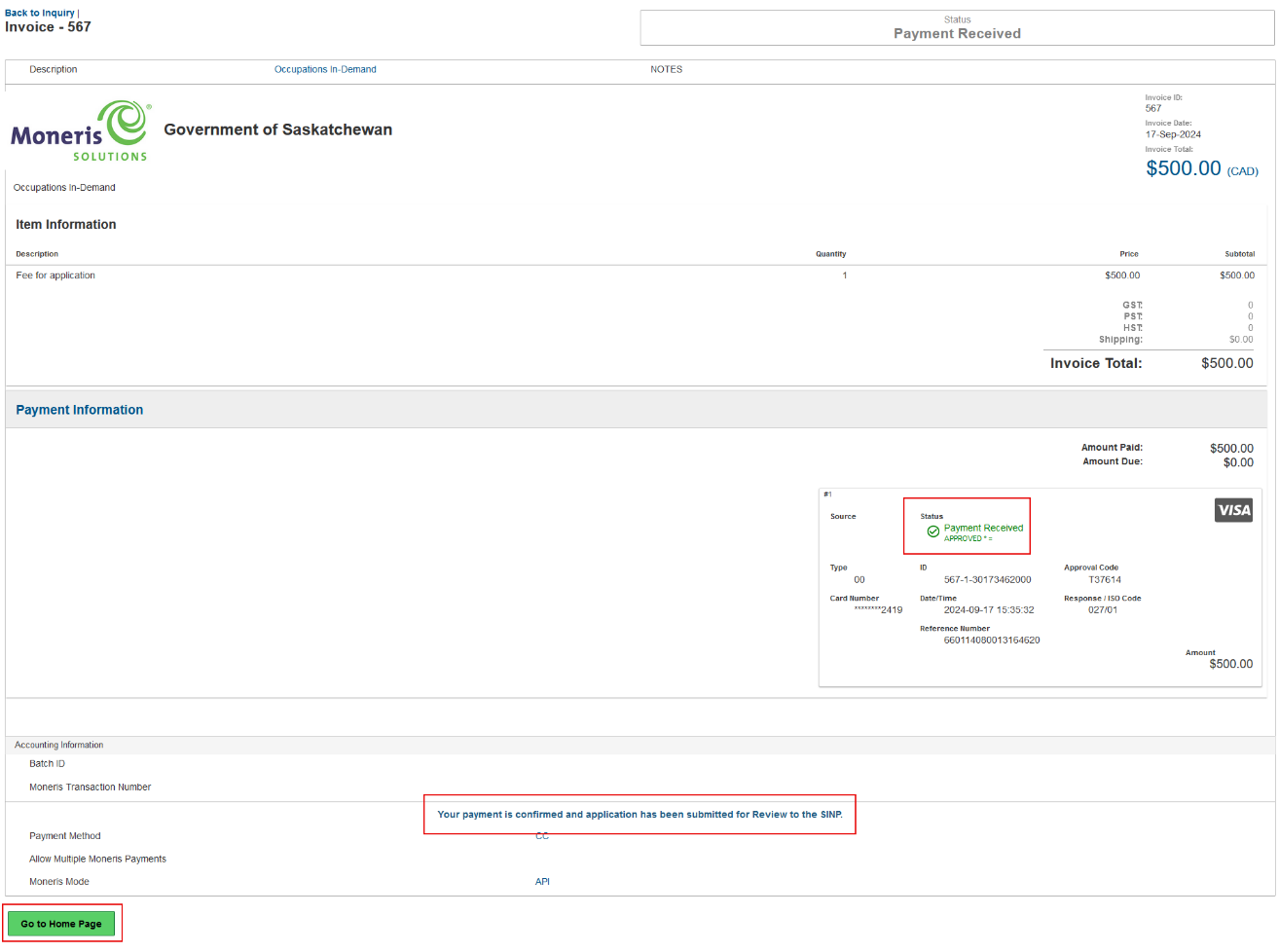
Click on "Go to Home Page" button to return to your application. You may view the invoice by clicking on the button below.

7.0 Application Received
You will get a file number after submitting your application:

You will receive a receipt letter within 24–48 hours after submission (example: 9999999).
8.0 Request for Additional Information
If your application requires additional documents to be processed, you will receive correspondence from the SINP through OASIS. To check your correspondence, you may click on the link provided on the email, or you may login to OASIS.
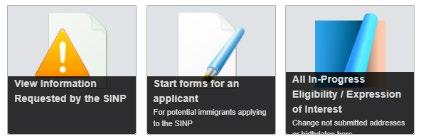
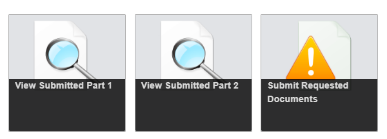
To submit your documents, please log into your OASIS account and click on 'Submit Requested Documents'. Upload the requested document(s) on the 'Request Additional Information' record and click the 'Submit' button.
You may also access 'Request Additional Information' record by clicking View Submitted Part 2.
Please note that documents received via email will not be accepted. You must attach all documents through your OASIS account.

If you require additional time to submit your documents, you may send your request by filling out the form below and click 'Request Extension to Submit Documents'.

Your request for extension may or may not be approved. You will receive correspondence whether your extension request has been approved or denied. Please upload all of the documentation you have currently available to satisfy the request for information before submitting your request for an extension.
9.0 Update Express Entry Profile Number and Job Seeker Validation Code
If during processing, your Express Entry Profile Number and Job Seeker Validation Code have changed, you may update them by opening your application. Under Part 2 of your SINP application (or Main Application Page), click the button below.

A page named "Information Changes" will display, and you can modify your Express Entry Profile information by filling out the fields provided. After entering the information, click 'Save' then 'Submit Changes' button.
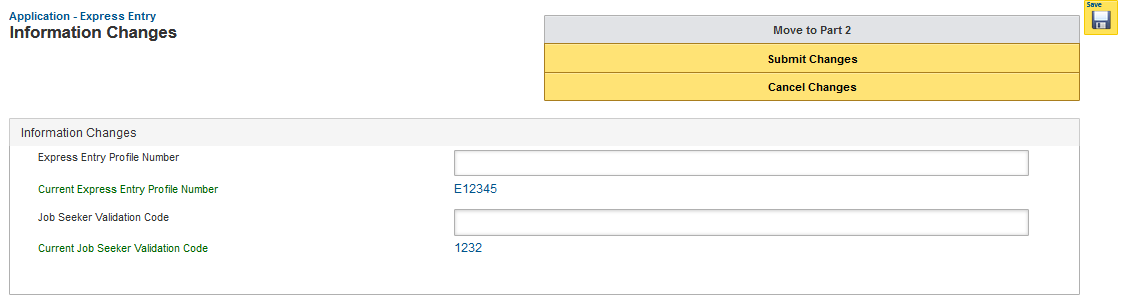
If you decide to cancel this step, click 'Move to Part 2' without saving or click 'Cancel Changes'.
You may go back to the main application sections by clicking 'Move to Part 2'. You may edit this information at any time that your file is active.
10.0 Second Review Process
If your application was deemed ineligible by the SINP and you believe that an error was made during application processing or in the assessment of the application based on the criteria at the time of application, then you may request a second review. You will have 30 days from the date that the SINP issued the ineligible letter to make the request. The system will not accept any request upon the expiry of the 30 days.
To request a second review, under Part 2 of your application please click 'Request for Second Review' button.

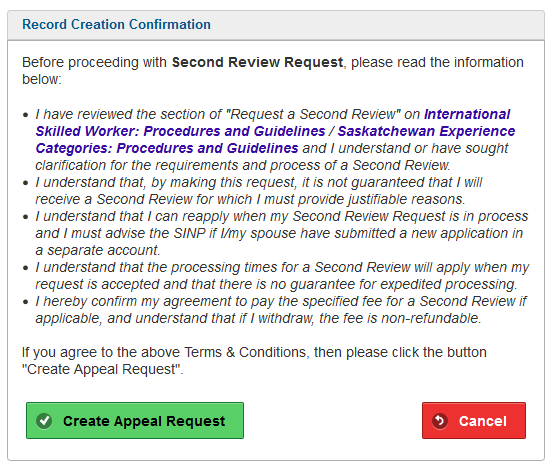
A confirmation window will show up and if you agree to the terms and conditions stated, please click 'Create Appeal Request' button.
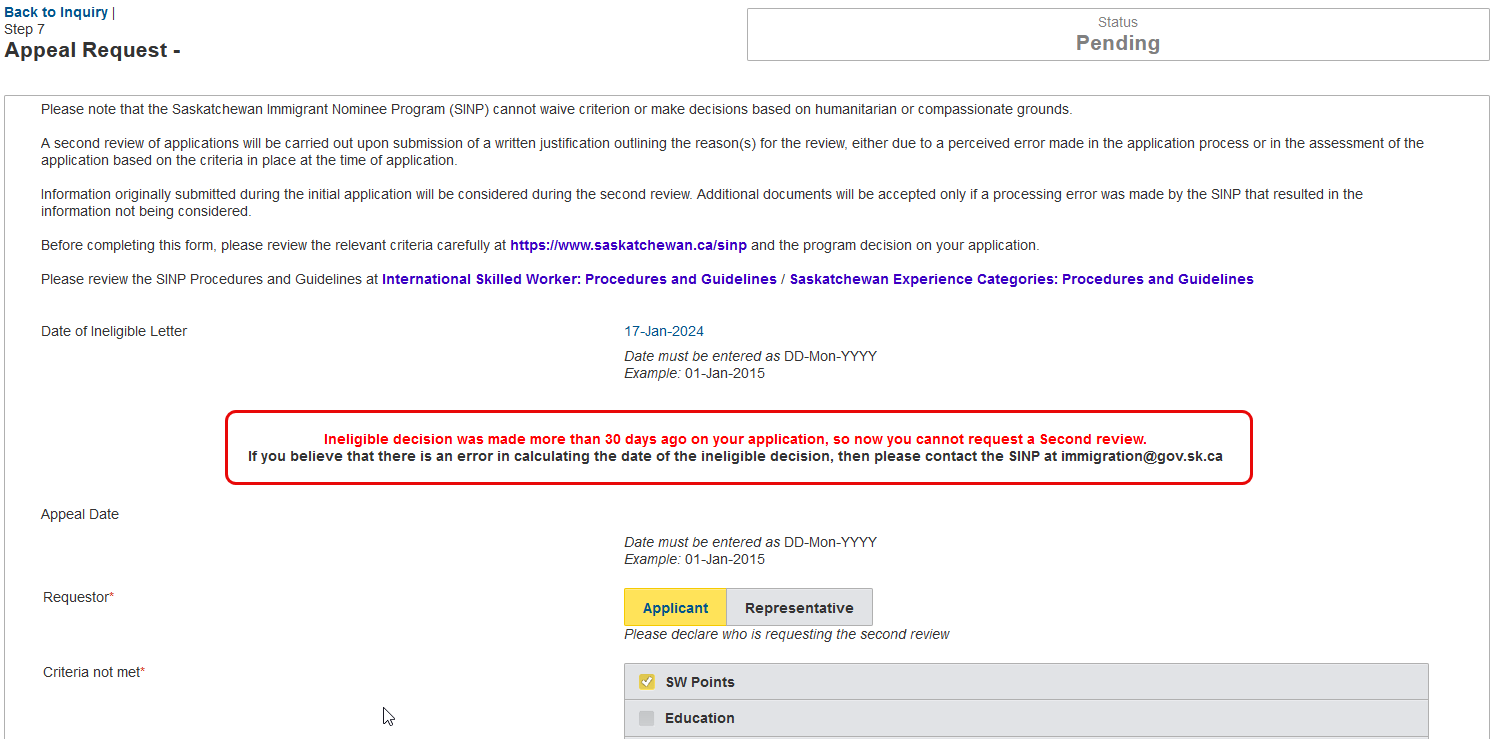
An Appeal Request record will be created for you to fill out, and you may attach documentation to support your request.

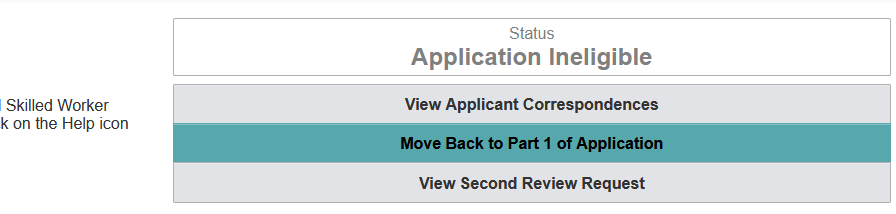
If you have not submitted the appeal yet, from the main application screen, you may view your pending second review request by clicking 'View Second Review Request' button.
You will have 30 days from the date that the SINP issued the ineligible letter to make the request. The system will not accept any request upon the expiry of the 30 days.
After the 30-day window, you will not be able to request for a second review.

If you have not submitted the appeal and the 30-day window has passed, you will not be able to submit the pending request.
To submit your appeal within the 30-day window, please click 'Submit Appeal Request'.
A warning message will appear advising you will be redirected to pay the second review fee.
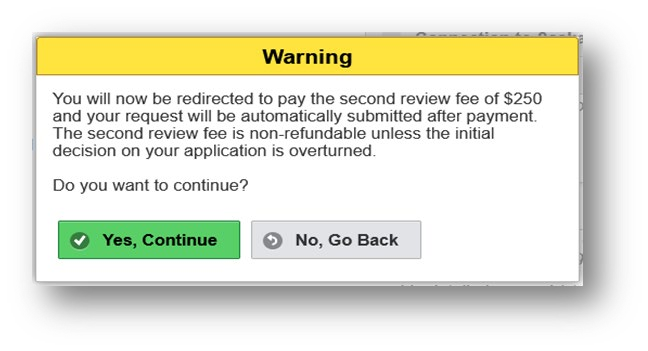
If you click "Yes, Continue" you will be directed to the payment page. Note: If you click "No, Go Back" you will be directed back to the appeal request page.
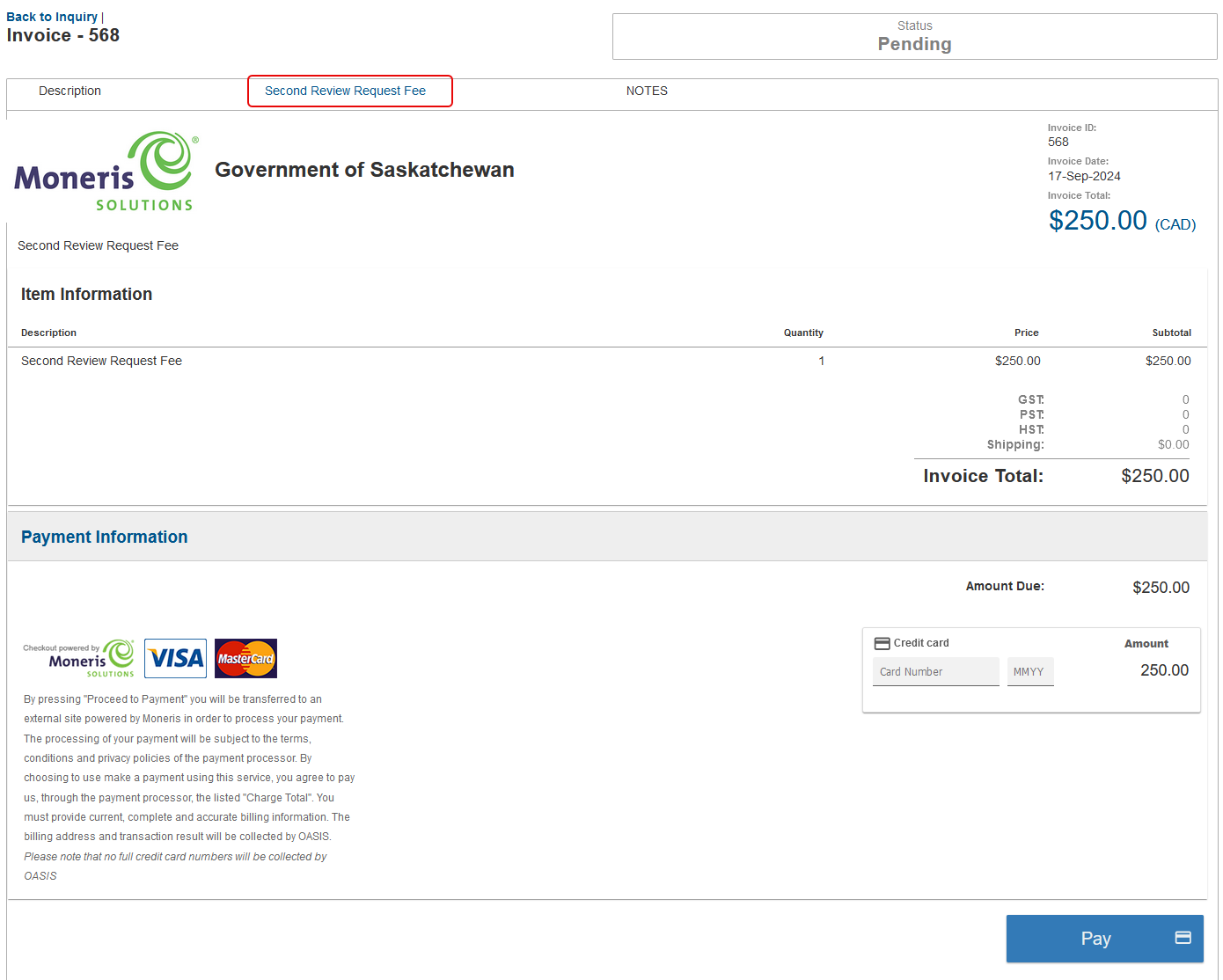
Once you have entered your credit card information click "Pay".
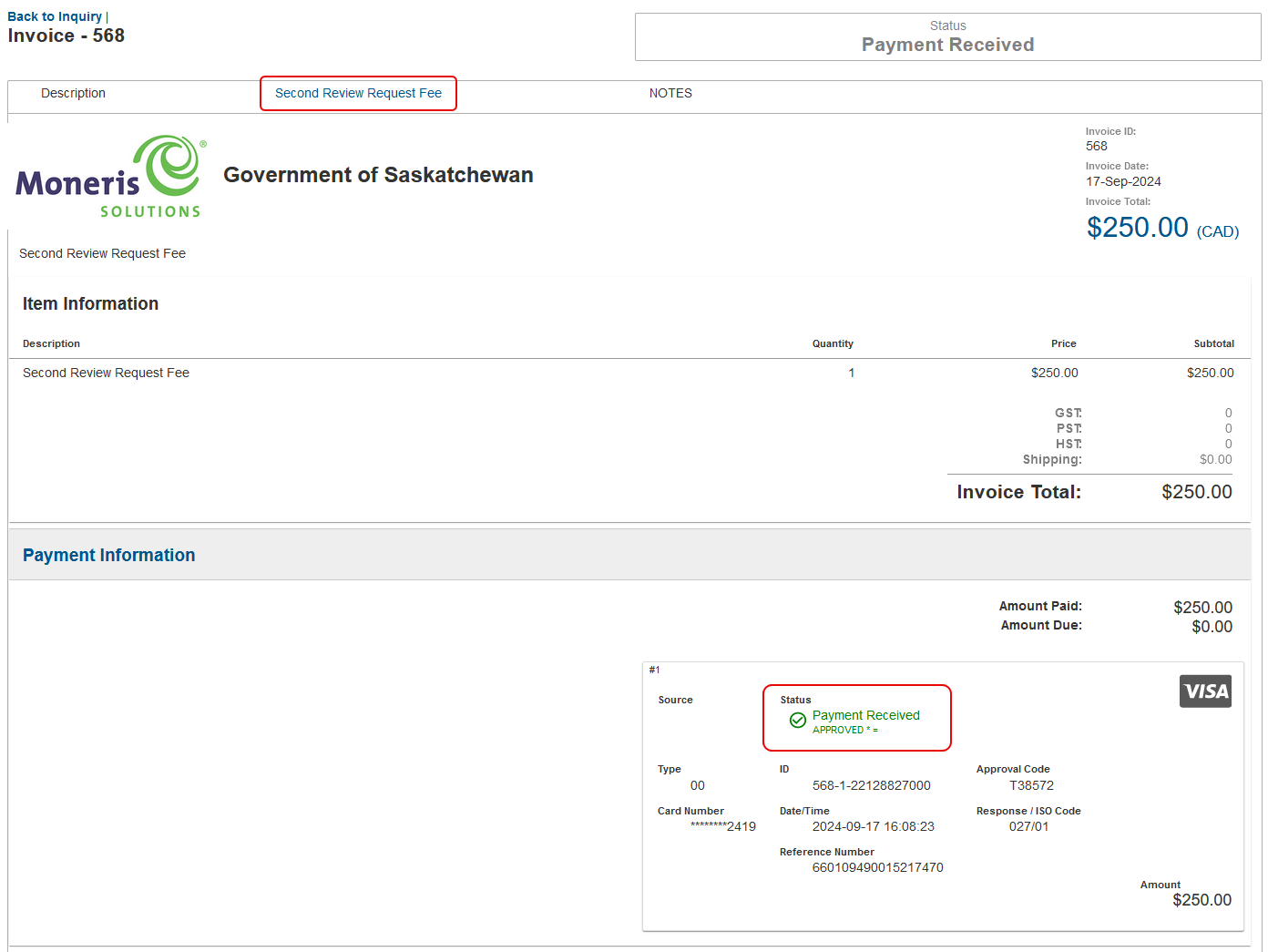
After successful payment, your second review request will be submitted automatically. You will receive a correspondence informing you that your request for second review was received.
A request for a second review may be denied if you cannot justify your reason for the review. Once the request is denied, your case is closed. If your request is accepted, a second review case will be created, and you will be notified by email that your application has been placed under second review.
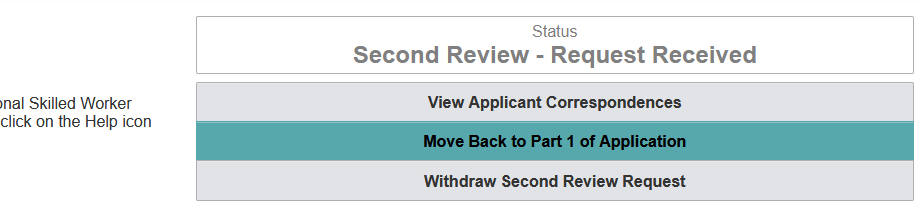
If you decide to withdraw your second review request, please click 'Withdraw Second Review Request' button.
A warning message will show up to confirm that you are withdrawing your request for second review.

- End of Guide -
Thank you for your interest in the Saskatchewan Immigrant Nominee Program.